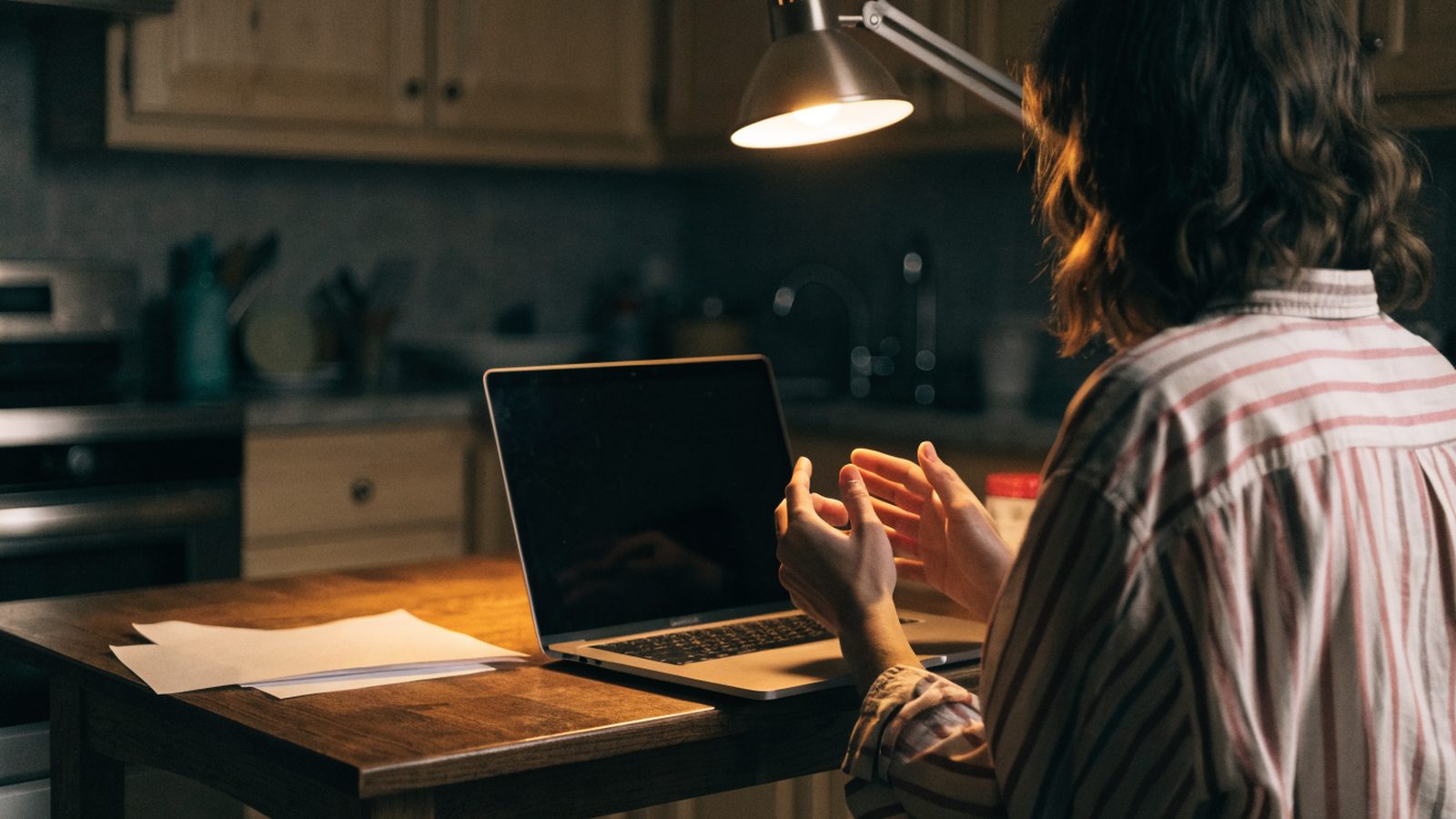
Your Chromebook is on. Fan running, keyboard backlight glowing, charging light lit, and the screen shows nothing at all. A chromebook black screen looks like a dead machine, but in most cases the display or graphics side is the problem, not the whole computer. Some people call it a chromebook black screen of death, though it’s rarely that final.
Work through the fixes below in order. The first few take under a minute and touch nothing on the machine. The later ones back up your files first, and I flag every step that erases local data.
Press the brightness-up key a few times before anything else. A stuck or accidentally lowered brightness setting causes this more often than you’d think. If that does nothing, hold Refresh and tap Power for a hard reset. Then plug in an external monitor: a picture there with nothing on the built-in screen means the panel, backlight, or cable is at fault, not the system itself.
Chromebook black screen: what causes it?
A screen that stays black while the rest of the machine clearly runs comes down to a short list of causes:
- Brightness turned down to zero, or a stuck brightness key
- The Chromebook is asleep or hibernating, not actually stuck
- A display driver glitch or a crashed renderer process after sleep or an update
- An update that got interrupted partway through
- A loose internal display cable, usually after a drop or a forced-open lid
- A failed backlight or LCD panel
If the screen is black but the power light is on and the fan is spinning, the system is very likely fine, so treat this as a display problem and start with Fix 1. Some Chromebooks show a black screen with cursor rather than a fully blank one. The same fixes apply either way, since a visible cursor just means the desktop loaded and the panel or backlight didn’t come up with it.
What you see tells you where to start
| What you see | Likely cause | Start with |
|---|---|---|
| Screen black right after opening the lid | Asleep, not broken | Fix 1 |
| Screen black, brightness key and hard reset both do nothing | Frozen display pipeline | Fix 2 |
| Screen went black mid-update | Update still installing | Fix 3 |
| Screen occasionally flashes or partially loads, then goes black | Corrupted ChromeOS state | Fix 5 |
| Screen black since a drop or a forced-open lid | Loose or damaged display cable | Fix 6 |
| External monitor also shows nothing, no fan or keyboard light activity either | Power problem, not a display problem | Won’t turn on guide |
Fix 1: Rule out brightness and sleep
This sounds too simple to be the answer, but it’s the most common cause by far.
- Press the brightness-up key (top row, sun icon) five or six times.
- Tap the power button once, don’t hold it, or open and close the lid.
- Wait a few seconds after each try before moving on.
An accidental brightness-down press, a stuck key, or a Chromebook that’s simply asleep rather than frozen explains a lot of “dead” screens. If either step brings the display back, nothing else here is needed.
Fix 2: Force a hard reset
A hard reset restarts the embedded controller, the small chip that manages power, the keyboard, and the display pipeline. It clears most software-level black screens and doesn’t touch your files.
- Press and hold
Refresh(the circular arrow key, where F3 sits on a normal keyboard). - While holding
Refresh, tapPower. - Let go of
Refreshand give the screen 10 to 15 seconds to come back.
On Chromebook tablets and detachables, hold Volume Up + Power for about 10 seconds instead. If the screen still shows nothing after two or three tries, move on to Fix 3.
Fix 3: Give a stuck update a few minutes
ChromeOS installs big updates in the background and switches over on restart. Occasionally that switch stalls with the screen dark instead of showing the logo, especially on older hardware with slow storage.
Plug in the charger and leave it alone for 10 to 15 minutes. Forcing a hard reset mid-update is usually fine, ChromeOS keeps a working copy of the system to fall back on, but it can mean waiting through the whole update again. If nothing has changed after 15 minutes, go back to Fix 2.
Fix 4: Test with an external monitor
This is the best diagnostic you have short of opening the case. Connect an external display over HDMI or USB-C and see what shows up.
- Connect the monitor before powering the Chromebook on, then power on normally.
- If nothing appears, try a different cable or a different HDMI/USB-C port before ruling it out.
- Give it 20 to 30 seconds before deciding it isn’t working.
A picture on the external screen with nothing on the built-in one points to the panel, the backlight, or the cable between them, not a system crash. That’s actually the easier outcome, since it rules out a motherboard problem. If the external monitor stays blank too, work through our guide to a Chromebook that won’t connect to an external monitor before assuming the worst, a bad cable or the wrong input source causes more of these than people expect.
Fix 5: Powerwash as a last software step
If the screen occasionally flashes or partially loads before going black, a corrupted ChromeOS state is a likely cause. A Powerwash resets the system to factory defaults. ⚠ This erases local data. Anything synced to your Google account, Drive files, bookmarks, most app data, comes back when you sign in again. Local Downloads and Linux files do not.
- If you can reach the sign-in screen (on the built-in display or an external monitor from Fix 4), press
Ctrl + Alt + Shift + R. - Choose Restart, then follow the on-screen Powerwash prompts.
- Sign back in once it finishes and check whether the black screen returns.
You need to see something on screen to trigger this, which is another reason to try the external monitor first. Our full Powerwash walkthrough covers the confirmation screens in detail.
Fix 6: Check for physical damage
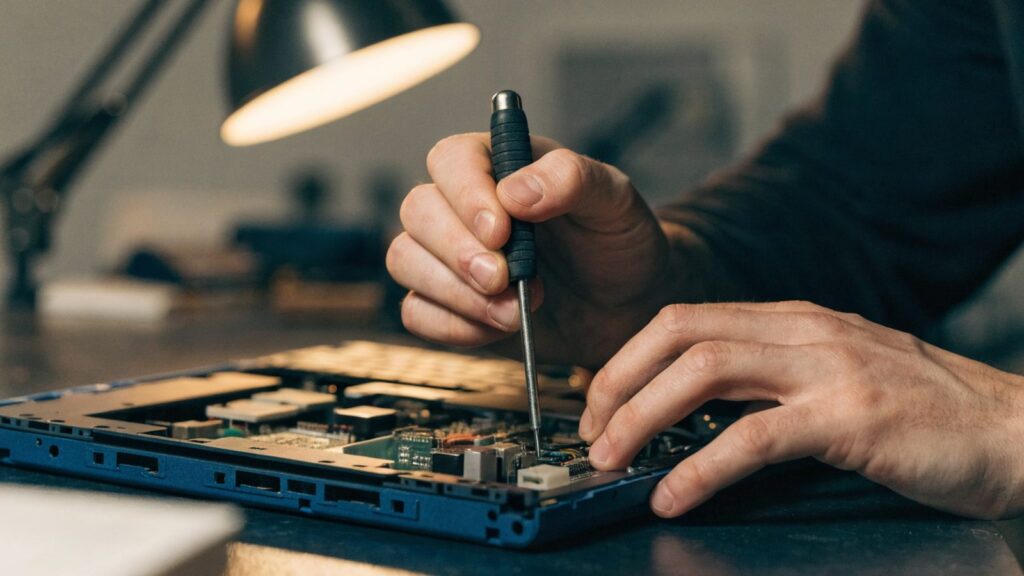
If the Chromebook was recently dropped, sat on, or had the lid forced open past its normal range, a loose or disconnected display cable inside the hinge is a likely culprit. Flexing the lid slightly while watching the screen sometimes makes the picture flicker on and off, which all but confirms a cable problem rather than a dead panel.
This one requires opening the case, so it’s not a step to take casually. Our hardware repair guides cover the teardown process, and if a technician ends up confirming a failed cable or panel, our Chromebook screen replacement cost guide lays out what the repair should run and when it’s cheaper to just replace the machine.
Still not working?
Two outcomes from the external monitor test in Fix 4 tell you where to go next. If the external display also shows nothing, and there’s no fan noise, no warmth, and no keyboard backlight either, this isn’t a display problem at all, it’s a power problem. Head to our Chromebook won’t turn on guide instead.
If the external monitor works fine but the built-in screen stays black no matter what you try, the panel, backlight, or cable needs professional attention. Check the warranty first: most Chromebooks carry one year of manufacturer coverage, and school or work devices usually go through an IT admin who can swap the unit outright. Out of warranty, get a repair quote using the model number, and weigh it against the cost of a screen replacement versus buying a new Chromebook, especially on a budget model that’s already close to its Auto Update Expiration date.
If none of the software fixes stick and the display itself tests fine externally, a full ChromeOS reinstall from recovery media is worth trying before you assume hardware. It reinstalls the operating system from scratch, which clears corruption that a Powerwash sometimes leaves behind. ⚠ This erases local data, back up first.
FAQ
How do I know if my Chromebook is asleep or actually broken?
Tap the power button once. If it wakes normally, it was asleep. If nothing changes after a single tap and a hard reset, treat it as a display problem and start working through the fixes above.
Can a black screen fix itself after a ChromeOS update?
Sometimes. If an update was installing when the screen went dark, give it 10 to 15 minutes before forcing a reset. Interrupting an update mid-install can mean starting it over rather than fixing anything.
Is a Chromebook black screen covered under warranty?
If it turns out to be a hardware fault, a failed panel, backlight, or cable, and the device is still within its manufacturer warranty period, yes. Contact the manufacturer before attempting a DIY repair, since opening the case yourself can void that coverage.
How is this different from being stuck on the logo screen?
A black screen usually means ChromeOS already loaded and the display failed to show it. Being stuck on the logo means ChromeOS itself never finished booting. If you see the Chrome logo and it just won’t move, follow our Chromebook stuck on the logo screen guide instead.
Fixes by Chromebook Brand
Black-screen behavior is not identical across brands. Display connectors, backlight hardware and firmware updates differ from one manufacturer to the next. If you know your brand, its dedicated guide goes further:
- Acer Chromebook Black Screen
- ASUS Chromebook Black Screen
- Dell Chromebook Black Screen
- HP Chromebook Black Screen
- Lenovo Chromebook Black Screen
- Samsung Chromebook Black Screen


LOG 1 report