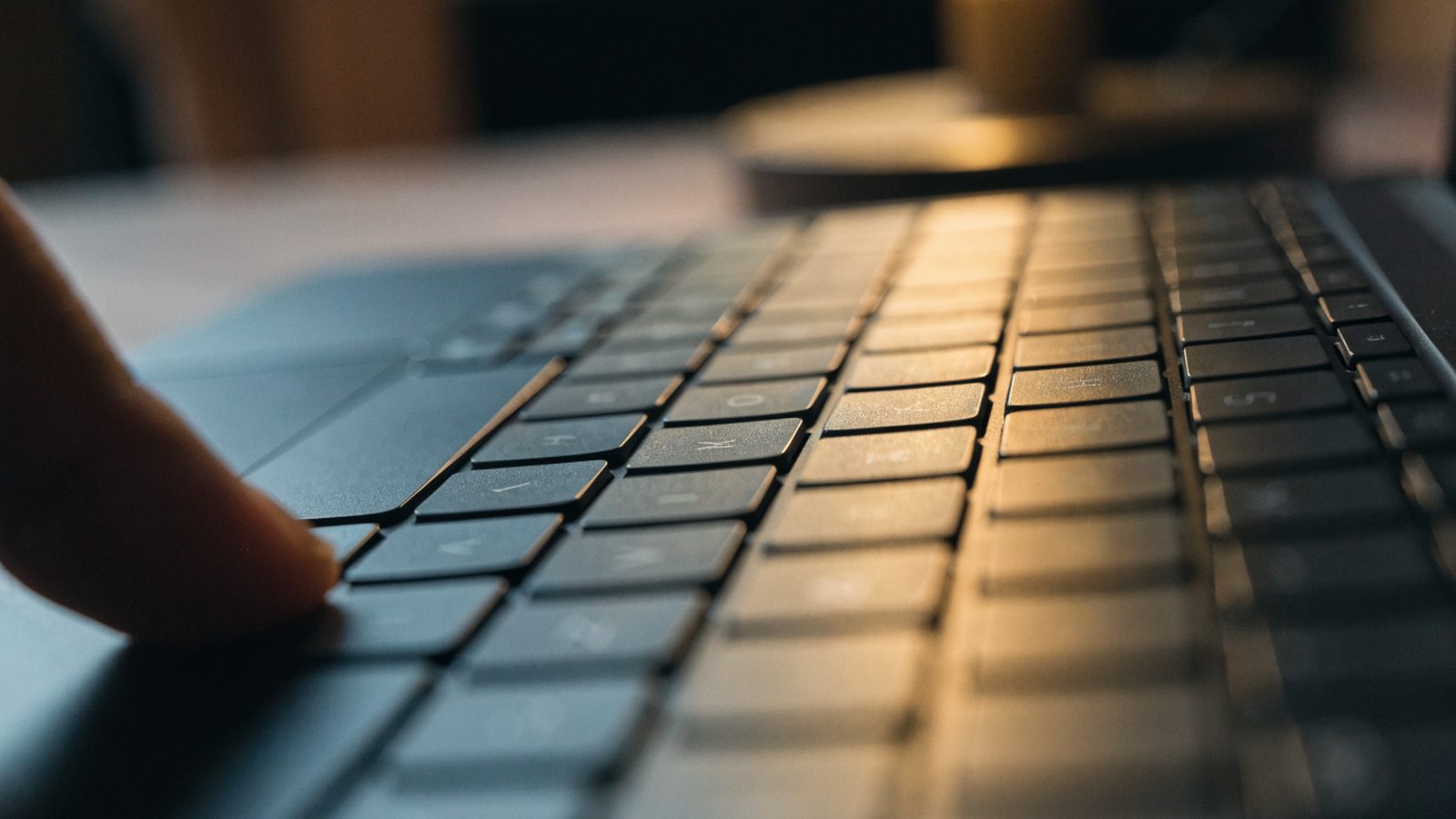
Keyboard problems on Dell Chromebooks (common on the rugged 3100/3110 education models after a year of student use) usually fall into three categories: the whole keyboard is dead, specific keys don’t respond, or keys type the wrong character. Each points to a different cause.
Whole keyboard unresponsive
- Hard reset: hold
Refresh + Powerto rule out a full system freeze rather than a keyboard-specific fault. If the trackpad is also unresponsive, the device itself may be frozen rather than the keyboard being broken. - Check for a stuck key. A single key jammed down (common with debris under the keycap) can make ChromeOS ignore all other keyboard input. Inspect for anything visibly stuck or depressed.
- Restart and check for updates under Settings > About ChromeOS.
Specific keys not responding
Crumbs, dust, and spilled liquid residue are the most common causes of individual dead keys on Chromebooks that see daily use in a backpack. Turn the Chromebook off, tilt it upside down, and gently tap the back to dislodge debris, then use compressed air between the keys. If liquid was spilled, avoid using compressed air (it can push liquid further in) and let it dry fully before testing.
Typing the wrong characters
Check Settings > Advanced > Languages and inputs > Inputs to confirm the keyboard layout matches your physical keyboard. A layout mismatch (for example, a US layout selected on a keyboard with different key printing) produces exactly this symptom and is often mistaken for a hardware fault.
Rule out an external keyboard conflict
If a Bluetooth or USB keyboard is or was recently connected, ChromeOS may be routing input oddly between the two. Disconnect any external keyboard and test the built-in one alone.
When it’s a hardware fault
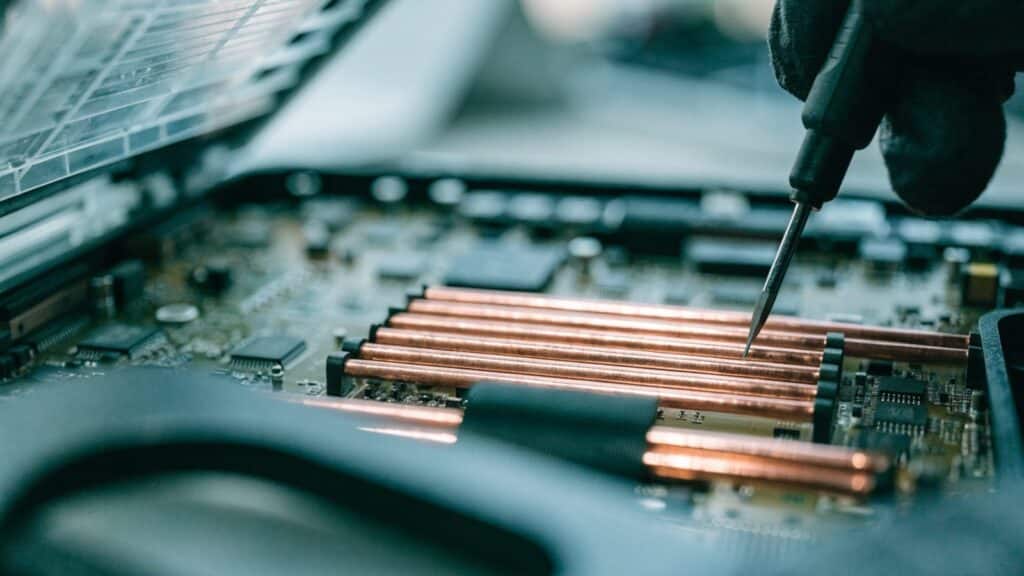
Multiple adjacent keys failing at once, keys that feel physically loose or don’t click, or a keyboard that failed right after a liquid spill point to a hardware repair rather than a cleaning or settings fix. Confirm your exact model with our model number finder before sourcing a replacement keyboard.
Compare with other brands
The same troubleshooting order applies broadly — see our guides for Acer, Lenovo, and ASUS Chromebook keyboards, or the general keyboard troubleshooting guide for more steps before replacing anything.