Quick Answer
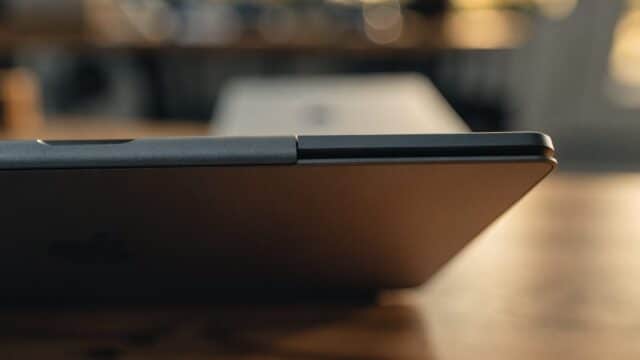
If your Lenovo Chromebook keyboard isn’t responding, restart the device first, this clears most stuck key-mapping glitches. On the Duet’s detachable keyboard base specifically, check the pogo-pin connection to the tablet before assuming a deeper fault, a loose magnetic connection is a common and easy-to-fix cause on that model.
Common Causes on Lenovo Chromebooks
- A loose pogo-pin connection between the Duet’s keyboard base and tablet
- A software glitch after sleep, wake, or a ChromeOS update
- The wrong keyboard layout or input language selected
- Accessibility features like Sticky Keys interfering with input
- Dust, crumbs, or liquid trapped under the keys on IdeaPad and Flex models
- Physical damage to the keyboard membrane or ribbon cable
Step-by-Step Fixes
1. Restart the Chromebook
Hold the Power button, select Restart, or force a hard reset with Refresh + Power if unresponsive. This clears the majority of temporary keyboard glitches.
2. Check the Duet’s Keyboard Connection
If you’re using a Lenovo Duet, detach the tablet from the keyboard base and reattach it firmly, making sure the pogo pins line up cleanly. A slightly misaligned connection is a common cause of a keyboard that seems dead.
3. Check the Keyboard Layout and Language
Go to Settings > Device > Keyboard and confirm the correct input language and layout are selected. A wrong layout can make keys produce unexpected characters, which looks like a broken keyboard.
4. Turn Off Sticky Keys and Other Accessibility Features
Open Settings > Accessibility > Keyboard and text input and disable Sticky Keys or the on-screen keyboard if it was enabled accidentally.
5. Test with an External Keyboard
Pair a Bluetooth or USB keyboard. If it works normally, the problem is isolated to the built-in keyboard hardware or its connection, not ChromeOS.
6. Clean Under and Around the Keys
Turn the Chromebook off, tilt it at an angle, and use compressed air to blow out crumbs or dust from between the keys.
7. Powerwash as a Last Software Step
If specific keys behave erratically across every app with the correct layout selected, a factory reset rules out deeper software corruption before you consider hardware repair.
Still Not Fixed?
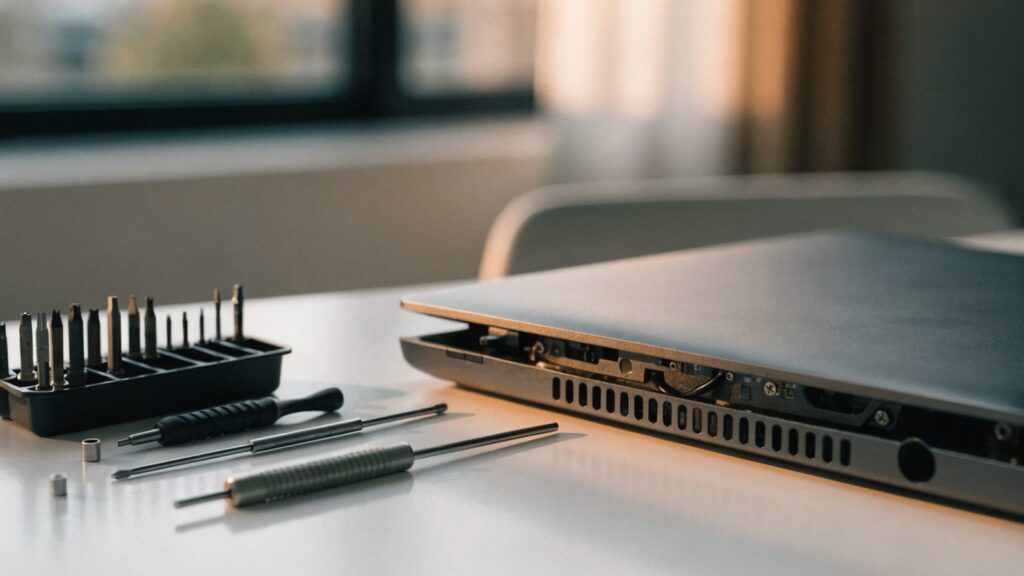
If specific keys remain dead after cleaning and a Powerwash, or the entire keyboard on a Duet stays unresponsive even after reseating the connection, the keyboard assembly or its cable likely needs replacing. See our Lenovo keyboard replacement guide for a walkthrough. If your Lenovo Chromebook is also showing a black screen from the same drop, get both checked together.
FAQ
Why does my Lenovo Duet’s keyboard stop working randomly?
The Duet connects its keyboard base magnetically through pogo pins rather than a fixed cable, so dust or a slight misalignment can interrupt the connection more easily than on a traditional clamshell Chromebook.
Why does my Lenovo Chromebook type the wrong letters?
Check Settings > Device > Keyboard first, an incorrect layout is a far more common cause than a hardware fault.
Is it worth replacing a Lenovo Chromebook keyboard myself?
For a few unresponsive keys, individual keycap cleaning or replacement is straightforward. A full keyboard assembly swap is more involved but doable with the right guide and part for your exact model.