Quick Answer
A Samsung Chromebook keyboard that’s unresponsive or typing incorrectly is usually a software or debris issue, not a failed keyboard. A restart, a language/layout check, and a careful cleaning resolve most cases well before a physical repair is needed.
Causes
- Stuck input or language setting — an accidentally changed keyboard layout can make keys appear to type the “wrong” characters.
- Debris under the keys — crumbs, dust, or spilled liquid residue can make specific keys stick or stop registering.
- A frozen input process — occasionally the keyboard driver hangs independently of the rest of the interface.
- Physical key or switch failure — a specific key that’s been pressed heavily for years, or after a drop or spill.
- Whole-keyboard failure — the ribbon cable connecting the keyboard to the motherboard has come loose, usually after the device has been opened before or dropped.
How to Fix It
1. Restart the Chromebook
A simple restart resolves a surprising number of keyboard issues tied to a hung input process. Use the on-screen power option if the keyboard itself won’t respond to shortcuts.
2. Check your keyboard language and layout
Go to Settings > Advanced > Languages and inputs and confirm the input method matches your physical keyboard. A layout mismatch is a common cause of keys “typing the wrong character” that isn’t actually a hardware fault.
3. Test in Guest Mode
If specific keys or shortcuts misbehave only in your account, try Browse as Guest at the sign-in screen. If the keyboard works normally there, the issue is a setting or extension tied to your profile, not the keyboard itself.
4. Check if it’s isolated to one or two keys
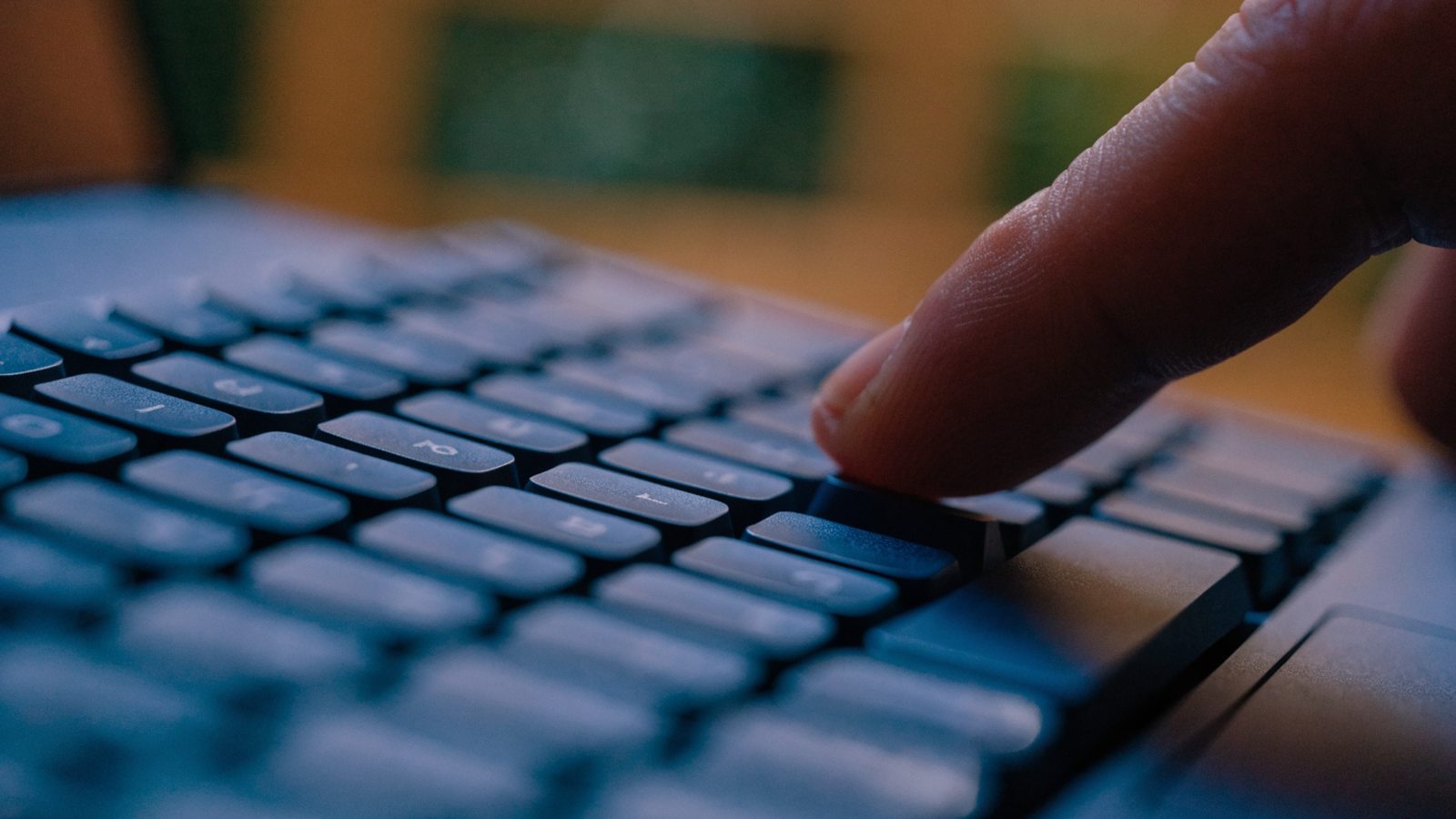
If only a couple of specific keys are affected, debris underneath is the most likely cause. Power off the Chromebook, tilt it at an angle, and gently tap around the affected keys to dislodge loose particles before trying compressed air.
5. Clean the keyboard properly
Follow our keyboard and fan cleaning guide for the safe method — avoid liquid cleaners directly on the keys, and never spray compressed air straight down into a key without holding it at an angle.
6. Test with an external USB or Bluetooth keyboard
If an external keyboard works perfectly while the built-in one doesn’t, this confirms the problem is isolated to the internal keyboard hardware or its connection, not ChromeOS itself.
Still Not Fixed?
If cleaning and a Guest Mode test don’t resolve it, and an external keyboard works fine in comparison, the internal keyboard itself likely needs attention. For a single failed key, our keyboard key replacement guide covers a DIY fix. For widespread unresponsiveness across many keys, the ribbon cable connecting the keyboard to the motherboard has likely come loose or failed, which is a more involved repair worth getting a cost estimate for first.
FAQ
Why is my Samsung Chromebook typing the wrong letters?
Check Settings > Advanced > Languages and inputs first — an incorrect keyboard layout is a far more common cause than a hardware fault, and it’s a one-minute fix.
Can I fix a single sticky key myself?
Often yes. Debris is the most common cause of a single sticky key, and careful cleaning resolves it in most cases without needing to replace anything.
Is a full keyboard replacement expensive?
It varies by model, but a full keyboard assembly replacement costs more than a single key repair. Get a quote before deciding between repair and simply using an external keyboard going forward.