
Quick Answer
Power down the Chromebook, then use compressed air and a dry microfiber cloth for the keyboard, and short bursts of compressed air through the fan vents (holding the fan blades still with a toothpick) to clear dust without spinning the motor. Never use liquid cleaners directly on the keyboard or vents.
Causes
- Sticky or unresponsive keys — usually from food crumbs, spilled drink residue, or dust buildup under keycaps.
- Loud or spinning-but-ineffective fan — dust and lint accumulate on the fan blades and heatsink over months of use.
- Overheating or thermal throttling — a clogged fan can’t move enough air, causing the device to slow down under load. See our overheating guide if this is your main symptom.
Fix Steps
Step 1: Power down completely
Shut down fully and unplug the charger. Never clean a Chromebook while it’s powered on or charging.
Step 2: Clean the keyboard surface
Tilt the Chromebook at a 75-degree angle and use compressed air between the keys to dislodge crumbs and dust. Wipe the keycap surfaces with a microfiber cloth lightly dampened with isopropyl alcohol (70% or higher), avoiding excess moisture that could seep between keys.
Step 3: Address individual sticky keys
For a single key that still feels gummy, gently pop off the keycap (see our keycap replacement guide for technique), clean the socket with a dry cotton swab, and snap the cap back into place.
Step 4: Clean the fan vents from outside
Locate the exhaust vents (usually on the side or bottom edge). Hold the Chromebook so debris falls away from the device, and use short 2–3 second bursts of compressed air angled into the vent. Hold the fan blades still with a toothpick through the vent opening if visible, to prevent the fan from spinning too fast and generating a damaging reverse voltage.
Step 5: Deep-clean the fan (advanced)
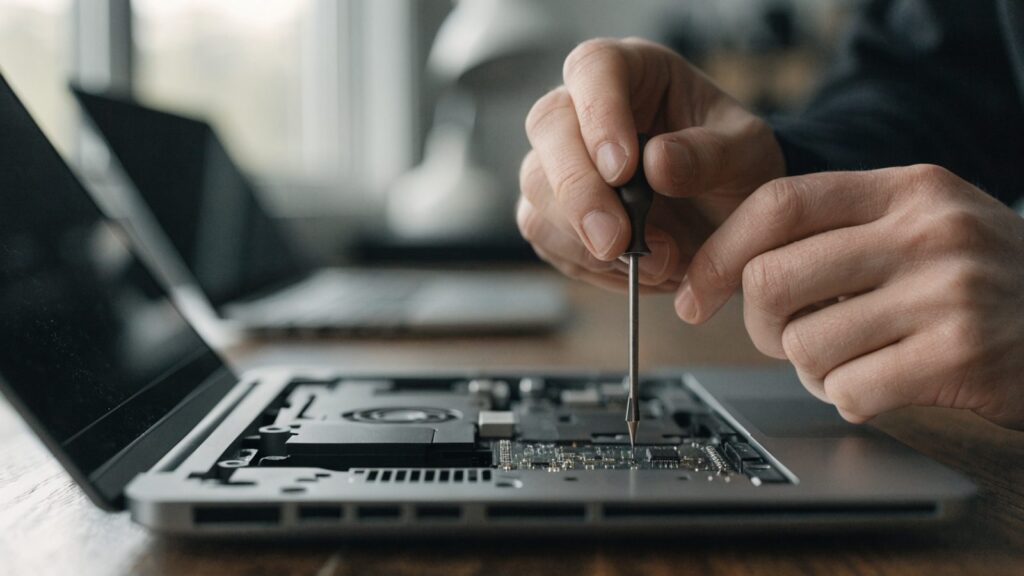
If vent cleaning doesn’t reduce fan noise, the fan and heatsink may need direct cleaning inside the case. This requires opening the chassis — see our teardown guide — and using a soft brush plus compressed air directly on the fan blades and heatsink fins.
Still Not Fixed?
If the fan is still loud after a thorough cleaning, the bearing may be worn out, which usually means fan replacement rather than further cleaning. If keys remain unresponsive after cleaning, check for a broken switch — see our keyboard troubleshooting guide.
FAQ
Can I use a vacuum to clean my Chromebook?
Avoid it — standard vacuums can generate static electricity that damages internal components. Compressed air is safer.
How often should I clean my Chromebook’s fan?
Every 6–12 months for typical home use, more often in dusty environments or if you notice the fan running loud or constant.
Is it safe to clean the keyboard with alcohol wipes?
Yes, as long as they’re not soaking wet — 70% isopropyl alcohol evaporates quickly and won’t damage plastic keycaps when used sparingly.