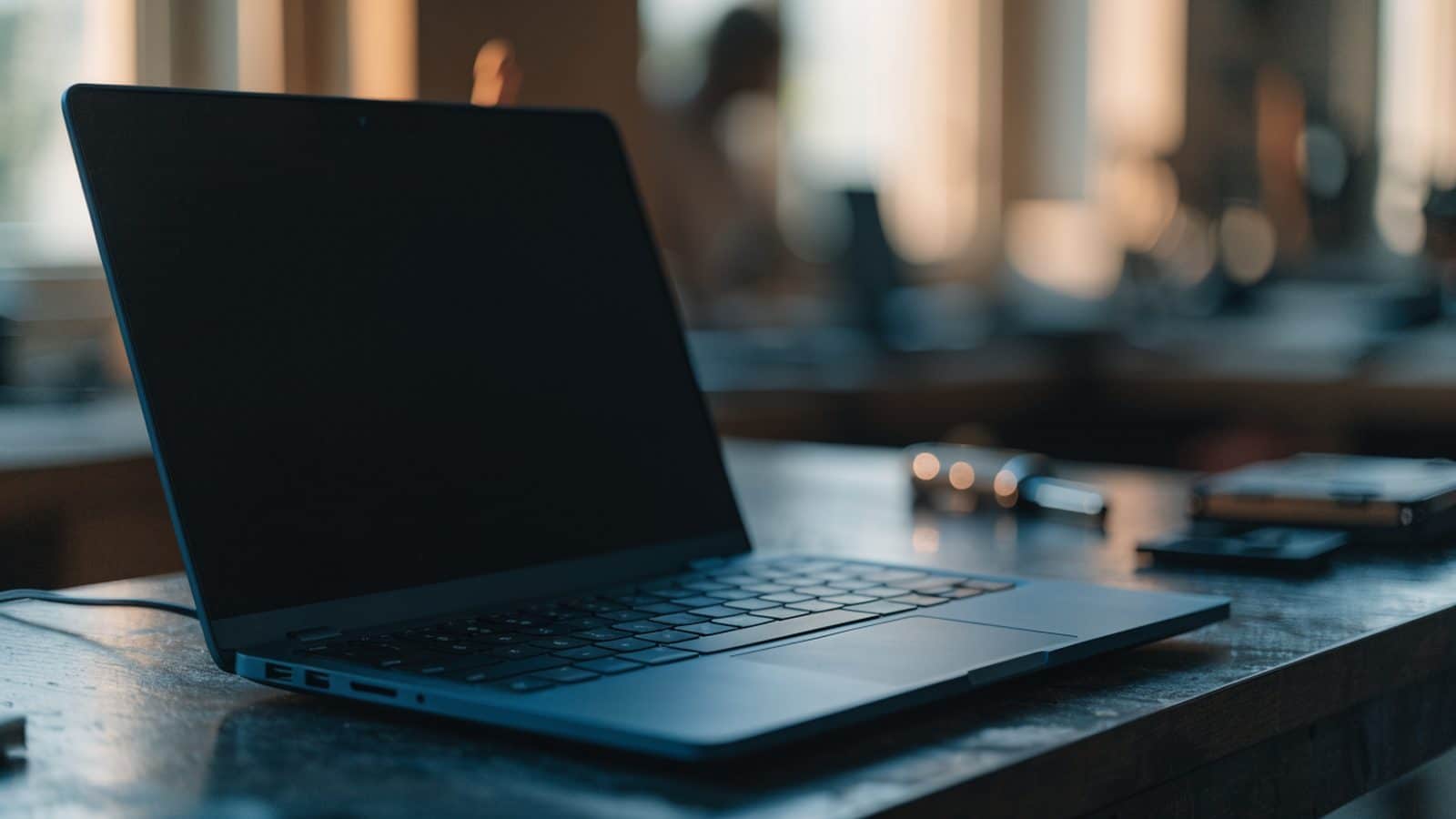
An ASUS Chromebook that boots to the logo and stops there, instead of reaching the sign-in screen, is a ChromeOS boot issue rather than a sign of dead hardware in the overwhelming majority of cases.
1. Force a hard reset
Hold Refresh + Power for several seconds to interrupt the stuck boot and force a fresh attempt.

2. Give it time if an update was mid-install
If ChromeOS was applying an update when the device last shut down, the logo can stay on screen for several minutes on the next boot while the update finishes applying. Wait at least 5-10 minutes before concluding it’s actually stuck.
3. Boot into recovery mode
Hold Esc + Refresh, then press Power, to reach the recovery screen. If it appears normally, your hardware is fine and you need to reinstall ChromeOS using a recovery USB drive built with the Chrome Recovery Utility on another computer. This wipes local data but fixes nearly all stuck-logo cases.
4. Check the battery
A deeply discharged battery can cause the system to brown out mid-boot, producing a symptom that looks identical to a stuck logo. Plug in the charger and wait 30 minutes before retrying.
5. Disconnect all peripherals
Remove any USB drives, SD cards, or a connected dock, and try booting with only the charger attached.
If it’s a different symptom
An ASUS Chromebook that’s not turning on at all (no logo appears) has a different troubleshooting path than one that reaches the logo and hangs. If the device also feels hot while stuck, check the ASUS Chromebook overheating guide, since thermal protection can interrupt the boot process.
Compare with other brands
The recovery process is identical across manufacturers — see HP and Lenovo Chromebooks stuck at the logo, or the general guide for background on the recovery process.
When recovery mode doesn’t help
If recovery mode won’t display, or a full reinstall still results in the same stuck-logo symptom, the eMMC storage chip or motherboard is likely failing, which needs a hardware repair rather than another software attempt.