Quick Answer
Most ASUS Chromebooks that won’t turn on are suffering from a deeply drained battery or a stuck power state, not a hardware failure. Plug in a known-good charger, wait a full 30 minutes without touching the power button, then try a hard reset before assuming the worst.

Causes
- Deeply drained battery — ASUS Chromebooks (Flip, CX, C-series) left unused for weeks can drop low enough that the charging circuit needs real time before the screen responds.
- Stuck power state — the embedded controller locks up in a way that looks identical to a dead device.
- Faulty USB-C charger or cable — a cable that charges a phone fine may not deliver enough wattage for a laptop.
- Damaged charging port — common on Flip convertible models where the port takes stress from repeated folding.
- Battery or motherboard hardware failure — the least common cause, worth assuming only after everything else is ruled out.
How to Fix It
1. Plug in and wait before doing anything else
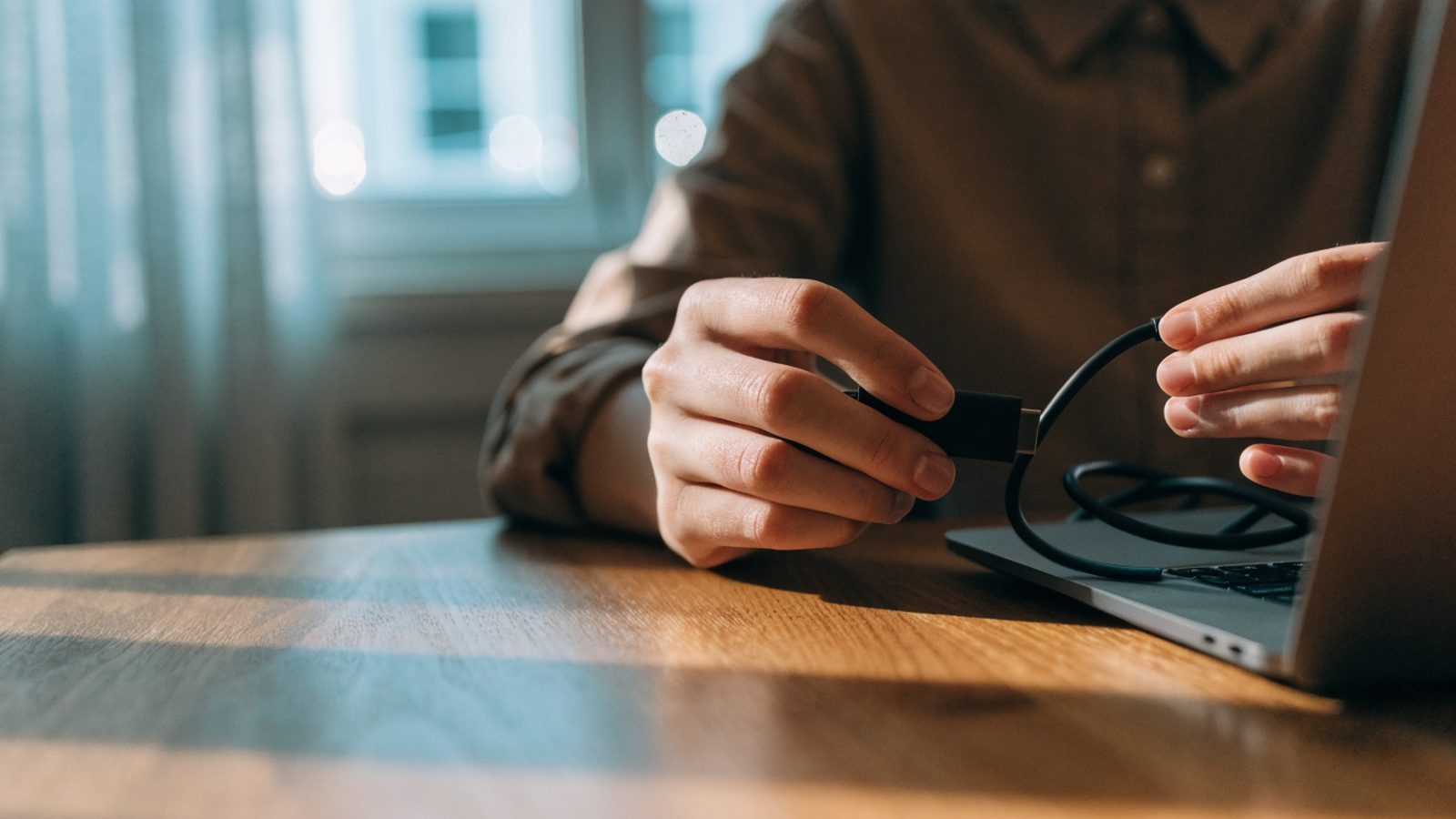
Connect the original charger, or a confirmed-working USB-C PD charger, and leave the ASUS Chromebook untouched for 30 minutes. Repeatedly pressing the power button during this window doesn’t speed up a deeply drained battery.
2. Force a hard reset
Hold Refresh + Power together for about 10 seconds. This clears a stuck power state on most ASUS Chromebook models without touching your data.
3. Check the charging light
Look for a small LED near the port. If it’s lit but the screen stays black, you’re dealing with a different issue — see our guide on a charging light on but won’t turn on. No light at all means move to the next step.
4. Try a different charger and outlet
Swap in another 45W+ USB-C charger and a different wall outlet. ASUS cables wear out at the bend near the connector faster than the brick itself.
5. Inspect the charging port for damage
Look for bent pins, lint, or a port that feels loose. This is especially worth checking on Flip models, where the hinge design puts extra strain on the port over time.
6. Run the full charging diagnostic
If nothing brings a response after an hour with a confirmed-good charger, work through our full charging diagnostic guide to isolate the battery, port, or motherboard as the cause.
Still Not Fixed?
If a hard reset and a confirmed-working charger both fail to bring the screen to life after an hour of charging, this is very likely a hardware issue. Check your purchase date against ASUS’s standard warranty first. Out of warranty, a battery replacement resolves most true dead-battery cases and is inexpensive on most ASUS models.
FAQ
How long should I charge a completely dead ASUS Chromebook before expecting a response?
Give it at least 30 minutes plugged in before pressing the power button, up to an hour if it’s been sitting unused for a long time.
Does the hard reset erase my files?
No. Refresh+Power only resets the power/hardware state — your Drive files and local downloads are untouched.
Are ASUS Flip models more prone to this issue?
The 360-degree hinge does put extra wear on the charging port over years of folding, making port damage slightly more common on Flip models than standard clamshells.