A Lenovo Chromebook camera that won’t show an image — whether it’s a black square in Google Meet, a “camera not found” error, or the camera app itself failing to open — is usually a permissions or software conflict rather than a broken sensor.
1. Check camera permissions
Go to Settings > Privacy and security > Site settings > Camera and confirm the site or app has permission. ChromeOS manages browser and Android app camera permissions separately, so an app that worked before an update can lose access silently.
2. Check for a physical privacy shutter
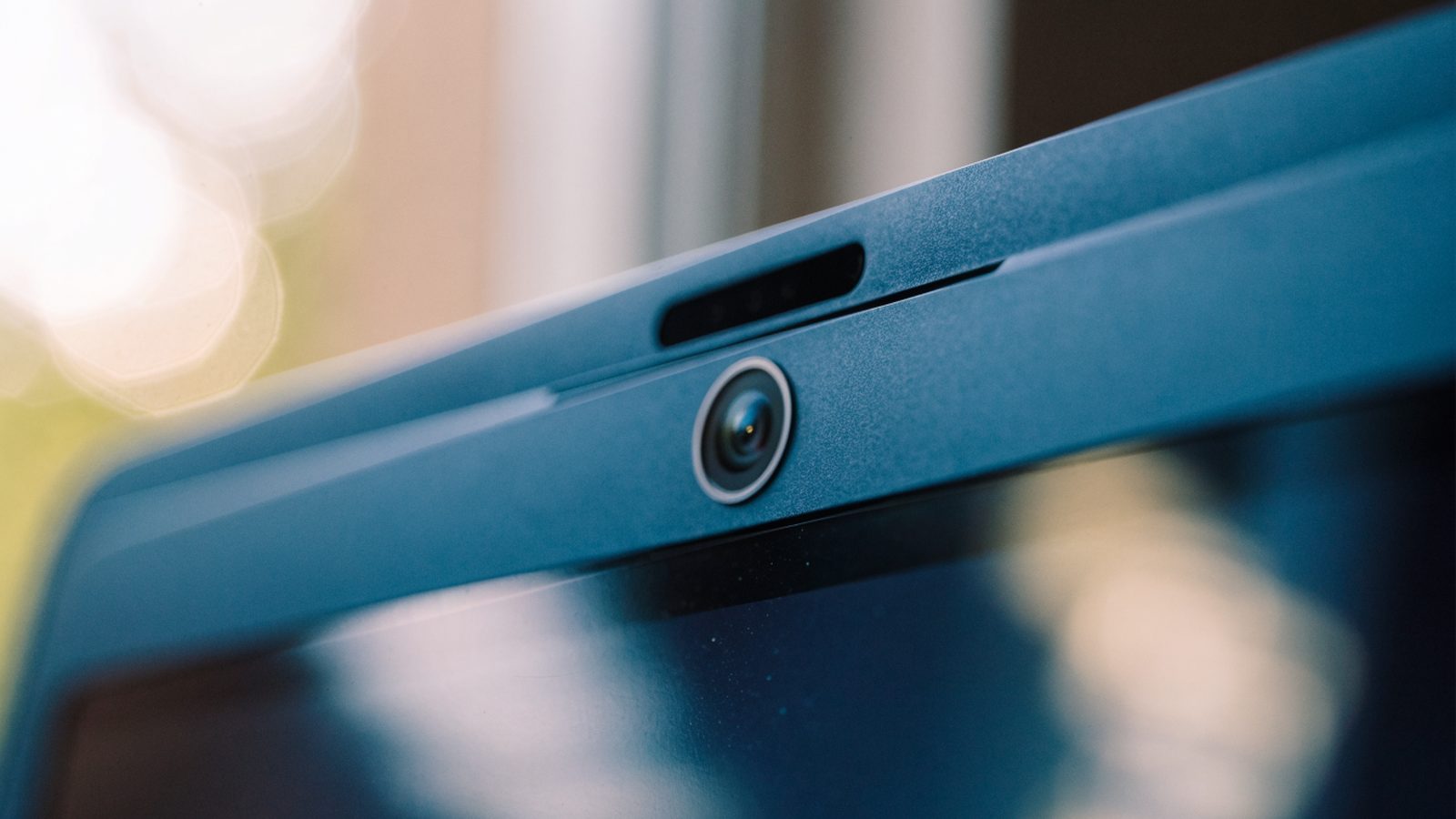
Some Lenovo Chromebook models (particularly business-oriented ThinkPad-branded Chromebooks) include a sliding physical shutter over the webcam. It’s easy to forget it’s there after buying the device used or after someone else last configured it — check the camera housing for a small slider.
3. Close other apps using the camera
Only one app can access the camera at a time on ChromeOS. If a video call app, the Camera app, or a background Android app is already holding the camera, other apps will show a black screen or an error. Close all apps that might use the camera and reopen just the one you need.
4. Test with the built-in Camera app
Open the Camera app from the launcher directly. If it also fails, the problem is system-level rather than specific to one call app. Run the Diagnostics app as well if your model supports a camera test.
5. Restart and check for updates
A restart clears most driver-level camera glitches. Check Settings > About ChromeOS for a pending update if the issue persists.
Related audio and video issues
If your microphone isn’t working at the same time as the camera, check whether one call app is responsible for both rather than assuming two separate hardware failures. The same troubleshooting order applies to Acer and Samsung Chromebook cameras, and the general camera troubleshooting guide covers additional edge cases.
If nothing restores the camera
A camera that fails the Diagnostics test, shows nothing in the Camera app, and remains broken after a Powerwash likely has a disconnected camera ribbon cable or a failed sensor. This typically requires professional repair or a warranty claim rather than a DIY fix, since the camera module sits behind the display bezel on most Lenovo Chromebooks.