Quick Answer
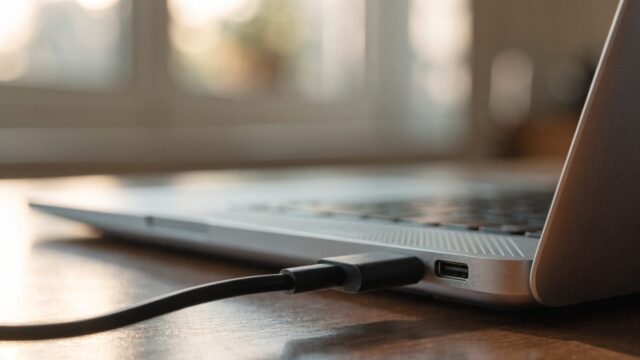
Start with the simplest possible causes: try a different cable and charger, check the port for lint or damage, and confirm the charger’s wattage matches your Chromebook. If a known-good charger still doesn’t charge it, the charging port or battery itself is likely at fault.
Common Causes
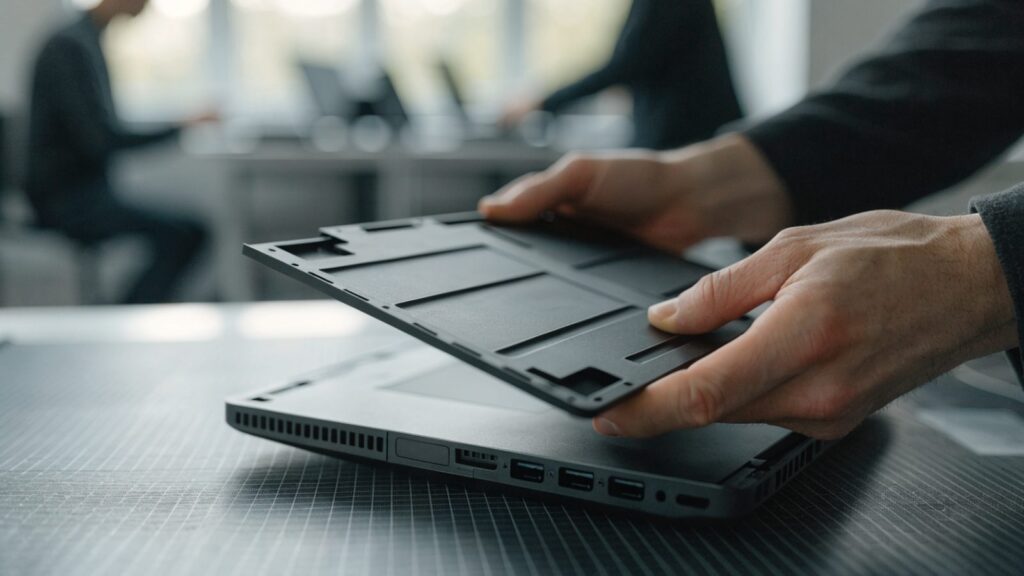
A Chromebook that won’t charge is usually caused by a faulty or underpowered charger/cable, a damaged or debris-filled USB-C port, a software glitch preventing the battery from registering the charge, or in some cases a genuinely failed battery or charging circuit.
Fix Steps
Step 1: Try a different cable and charger
Cables fail more often than chargers. If you have a second USB-C cable or charger, swap it in first, since this rules out the most common cause in under a minute.
Step 2: Check the wattage of your charger
Underpowered chargers (like a phone charger under 18W) can sometimes trickle-charge very slowly or not charge at all under load. See our charger wattage guide to confirm your charger meets your Chromebook’s requirement.
Step 3: Inspect the charging port
Unplug the charger and look inside the USB-C port with a flashlight for lint, dust, or bent pins. Clean gently with a wooden toothpick or compressed air, never metal tools.
Step 4: Try charging from a different port
Many Chromebooks have two USB-C ports and either can charge. If one port doesn’t charge but the other does, the issue is isolated to that port.
Step 5: Watch the charging indicator light
If the light comes on but the battery percentage doesn’t rise, or the light doesn’t come on at all, it points toward different causes. No light at all usually means a power delivery problem; a light with no percentage increase can be a software reporting issue.
Step 6: Force a hard reset
Hold the Refresh key + Power button for a few seconds while plugged in. This can clear a stuck power-management state that’s blocking the battery from charging even though power is reaching the board.
Step 7: Check for a ChromeOS update
Go to Settings > About ChromeOS > Check for updates, since battery and charging driver bugs are occasionally patched.
Step 8: Test with the Chromebook fully powered off
Some charging faults only show up while the device is awake and drawing power faster than it charges. Plug it in while fully off and check again after 30 minutes to see if the percentage moved.
Still Not Fixed?
If a different cable, charger, and port all fail to charge the Chromebook, the problem is almost certainly hardware: either the charging port itself or the battery. See our guide on charging port repair and diagnosis for next steps and repair costs.
FAQ
Why does my Chromebook show “not charging” while plugged in?
This usually means power is reaching the device but not being accepted by the battery. See our dedicated guide on a Chromebook plugged in but not charging for this specific message.
Can a bad charger damage my Chromebook?
A cheap, non-compliant USB-C charger can in rare cases deliver incorrect voltage and damage charging circuitry. Stick to chargers that meet USB-PD standards and the correct wattage for your model.
How do I know if it’s the battery and not the charger?
If the Chromebook charges fine from a different verified-good charger and cable, the battery is unlikely to be the cause. If nothing charges it, run a battery health check to confirm.