Quick Answer
Most “won’t turn on” cases on an Acer Chromebook come down to one of three things: a battery that’s fully drained and needs a longer charge than expected, a stuck power state that a hard reset clears, or (less often) a faulty charging port or battery. Start with a forced hard reset and a known-good charger before assuming it’s a hardware failure.

Causes
- Deep-discharged battery — Acer Chromebooks that sat unused for weeks can drop low enough that the charging circuit needs 15-30 minutes plugged in before the screen responds at all.
- Stuck power state — a frozen embedded controller can make the device look dead even though it isn’t.
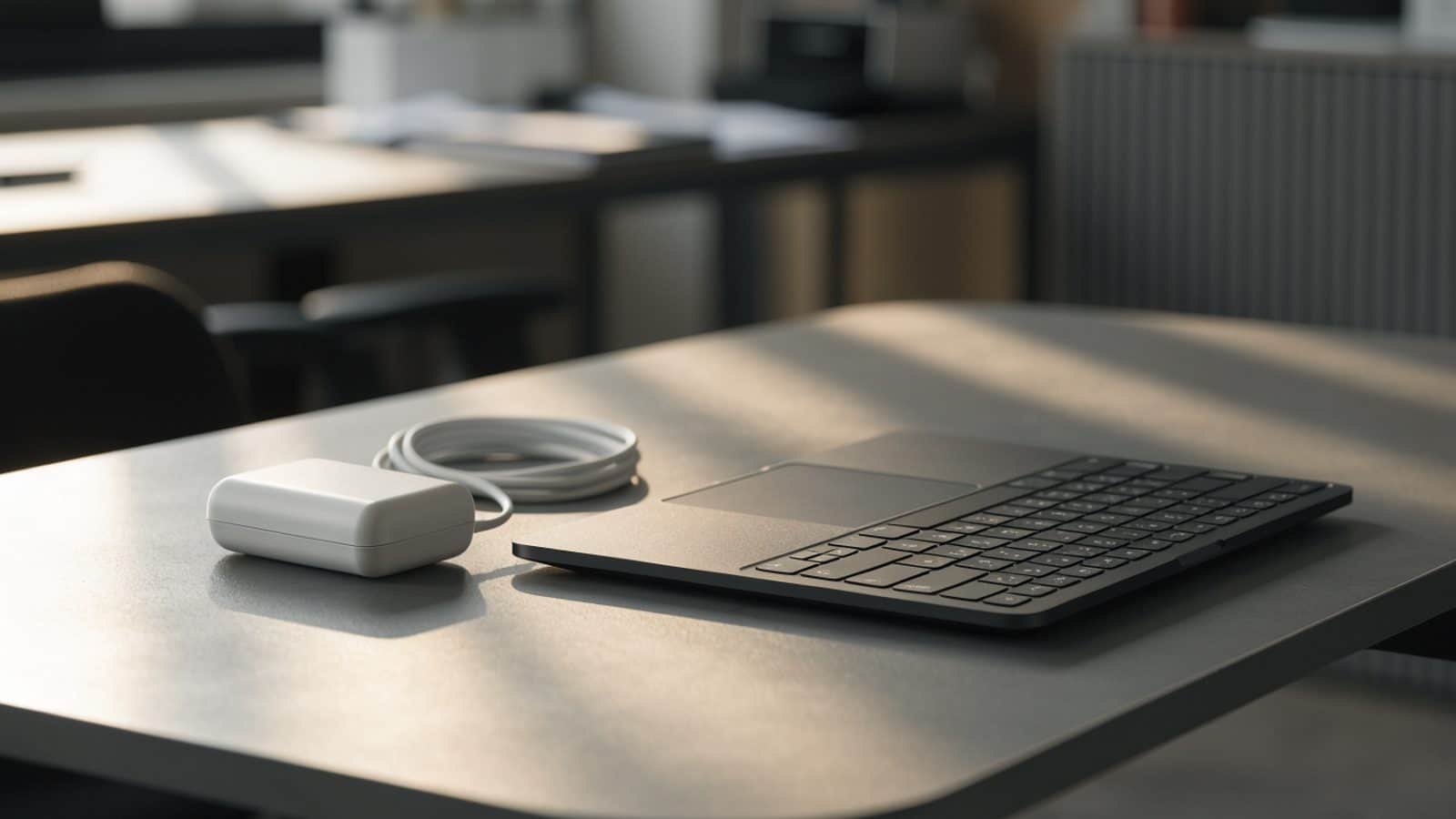
- Faulty charger or cable — many Acer models use USB-C charging, and an underpowered or damaged cable will fail to charge the device even when it appears to be plugged in properly.
- Damaged charging port — physical damage from repeated plugging or a drop can break the port’s connection to the motherboard.
- Battery or motherboard hardware failure — the least common cause, usually confirmed only after everything else has been ruled out.
How to Fix It
1. Plug in and wait before doing anything else
Connect the original charger (or a confirmed-working USB-C PD charger) and let the Acer Chromebook sit for 30 minutes untouched. A deeply drained battery can take that long to show any charging indicator, and pressing the power button repeatedly during this window doesn’t speed it up.
2. Force a hard reset
Hold the Refresh key (the circular arrow, usually where F3 sits) and press Power at the same time, holding both for about 10 seconds. This clears a stuck power state on most Acer Chromebook models without touching your data.
3. Check the charging light
Look for a small LED near the charging port. If it’s on but the screen stays black, the issue is likely a display or boot problem rather than power — see our guide on a charging light on but won’t turn on. If the light doesn’t come on at all, move to the next step.
4. Try a different charger and outlet
Swap in another USB-C charger rated at 45W or higher if you have one, and try a different wall outlet. Acer’s bundled chargers are reliable, but cables wear out at the bend points faster than the brick itself.
5. Inspect the charging port for damage
Look for bent pins, debris, or a port that feels loose when the cable is inserted. If the connector wiggles more than it should, the port itself may be damaged — see our charging port repair guide for diagnosis steps and repair cost.
6. Rule out a dead battery
If the device still won’t respond after a full charging cycle attempt with a confirmed-good charger, the battery itself may have failed rather than just drained. Our full charging diagnostic guide walks through isolating a dead battery from a bad port or cable.
Still Not Fixed?
If the hard reset and a confirmed-working charger both fail to bring the screen to life after an hour of charging, this is very likely a hardware issue rather than something a reset or update can fix. Acer Chromebooks are generally still under warranty in their first year — check your purchase date before paying for a repair. If it’s out of warranty, a battery replacement resolves most true dead-battery cases and is inexpensive on most Acer models.
FAQ
How long should I charge a completely dead Acer Chromebook before expecting a response?
Give it at least 30 minutes plugged in before pressing the power button. Some models need up to an hour after a full discharge before the battery has enough charge to boot the display.
Does the hard reset erase my files?
No. The Refresh+Power hard reset only clears a stuck hardware/power state — it doesn’t touch your Google Drive files, local downloads, or settings.
Is this covered under Acer’s warranty?
Charging port and battery defects are typically covered within the standard 1-year warranty period if there’s no physical damage. Check your specific purchase date and retailer return policy first.



LOG 1 report