Quick Answer
A Dell Chromebook that’s clearly running (fan noise, keyboard backlight, charging light) but shows a black screen is almost always a display or graphics glitch rather than a dead device. Force a hard reset first, then test with an external monitor to isolate the display from the system.

Causes
- Software or driver glitch — most common after waking from sleep or a ChromeOS update.
- Brightness accidentally set to zero — surprisingly common on Dell’s rugged Education-line Chromebooks with recessed brightness keys.
- Loose internal display cable — common on Dell Chromebooks that have been dropped or handled roughly by students.
- Failed backlight or LCD panel — the device runs fine but the panel itself no longer lights up.
- Stuck update or crashed renderer process — a temporary software freeze that resolves with a reset.
How to Fix It
1. Check brightness first
Tap the brightness-up key repeatedly (top row, sun icon). On Dell’s rugged education models, this key sits close to other function keys and gets pressed down accidentally more often than you’d expect.
2. Force a hard reset
Hold Refresh + Power for 10 seconds. This reboots the display pipeline along with the rest of the system and resolves most software-triggered black screens.
3. Wake it properly
Tap the power button once, or open and close the lid. If it was asleep rather than frozen, this alone restores the display.
4. Test with an external monitor
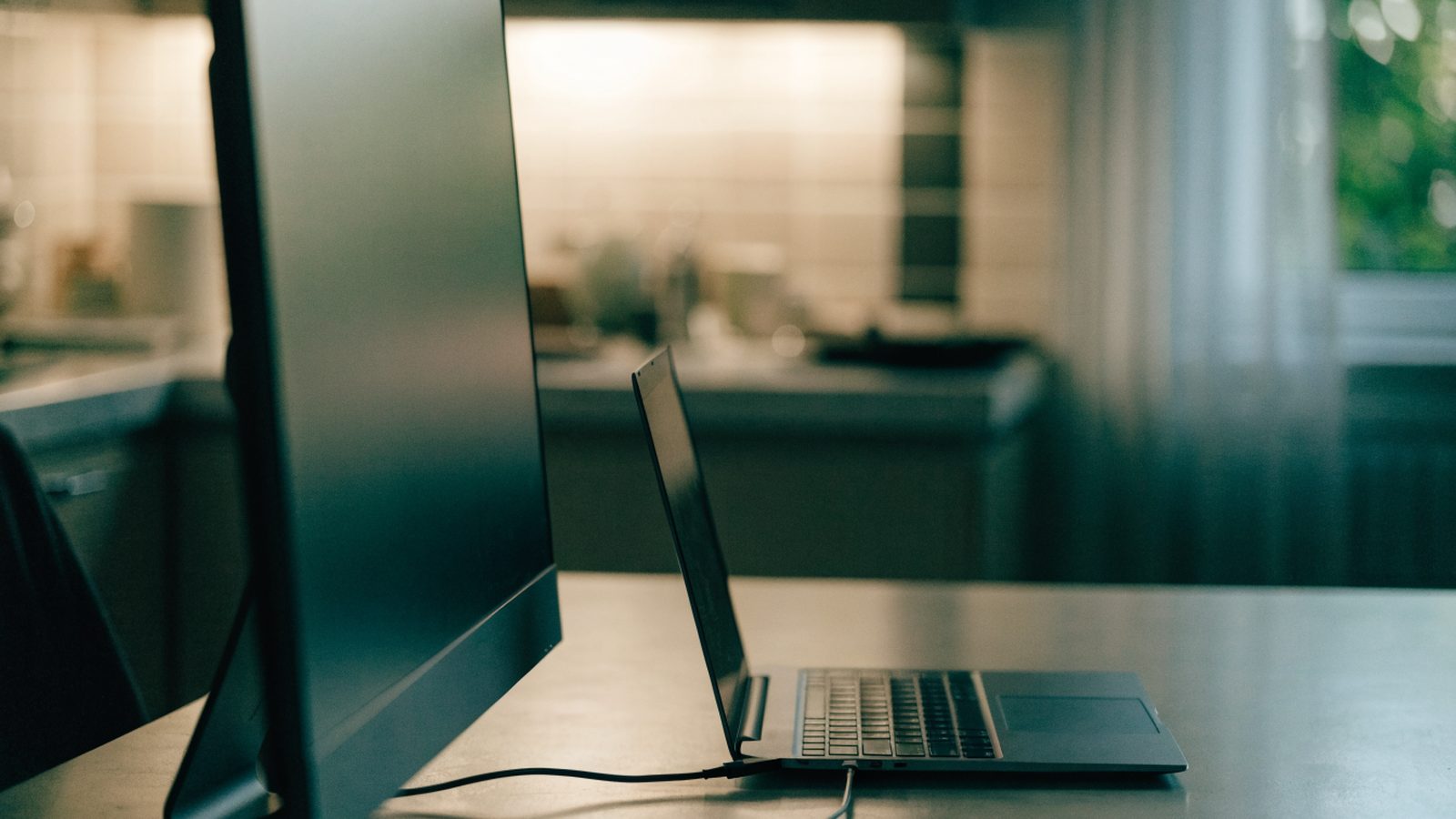
Connect via HDMI or USB-C. A picture externally with nothing on the built-in screen points to a panel, backlight, or cable fault rather than a system crash.
5. Check for physical damage
Dell Chromebooks used by students see more drops and lid stress than most. If the unit was recently dropped or the lid forced open at an odd angle, a loose display cable inside the hinge is a likely cause — this needs the case opened.
6. Powerwash as a last software step
If the screen flickers or partially loads before going black, back up your data and run a Powerwash to rule out a corrupted ChromeOS state.
Still Not Fixed?
If an external monitor also shows nothing and the fan and keyboard lights show no activity, this is a power problem, not a display one — see our generic Chromebook black screen guide for the full breakdown. If the external display works but the built-in screen stays black, the panel or cable likely needs professional repair — see our screen replacement cost guide.
FAQ
Why does my Dell Chromebook’s screen go black right after a drop?
This points strongly to a loose or damaged internal display cable, especially if the screen flickers back on when you gently move the lid to a different angle.
Is this covered if the Chromebook is a school-issued device?
Many school districts carry accidental damage coverage separate from the manufacturer warranty — check with the school’s IT department before paying for repair out of pocket.
Can a ChromeOS update cause a black screen on Dell models?
Occasionally, yes. If an update was mid-install when the screen went black, give it 10-15 minutes before forcing a reset.