A Lenovo Chromebook that shows absolutely no sign of life — no lights, no fan spin, no display — is one of the more alarming symptoms, but it’s frequently fixable without any repair. Here’s the diagnostic order that rules out the most common causes first.
1. Confirm it’s actually charging
Plug in the charger and check for a charging light near the port. No light at all after several minutes, tried with a charger you know works, points toward a battery or charging-circuit issue rather than a display or boot problem. If the light is on but the screen stays black, that’s a different symptom — see our guide on a Lenovo Chromebook with the charging light on but not turning on.

2. Force a hard reset
Hold Refresh + Power for at least 10 seconds. On some Lenovo models (Duet, IdeaPad Chromebook variants), the Refresh key is in a slightly different position than on Acer or HP keyboards — it’s the key with the circular arrow icon in the top row.
3. Try a different outlet and cable
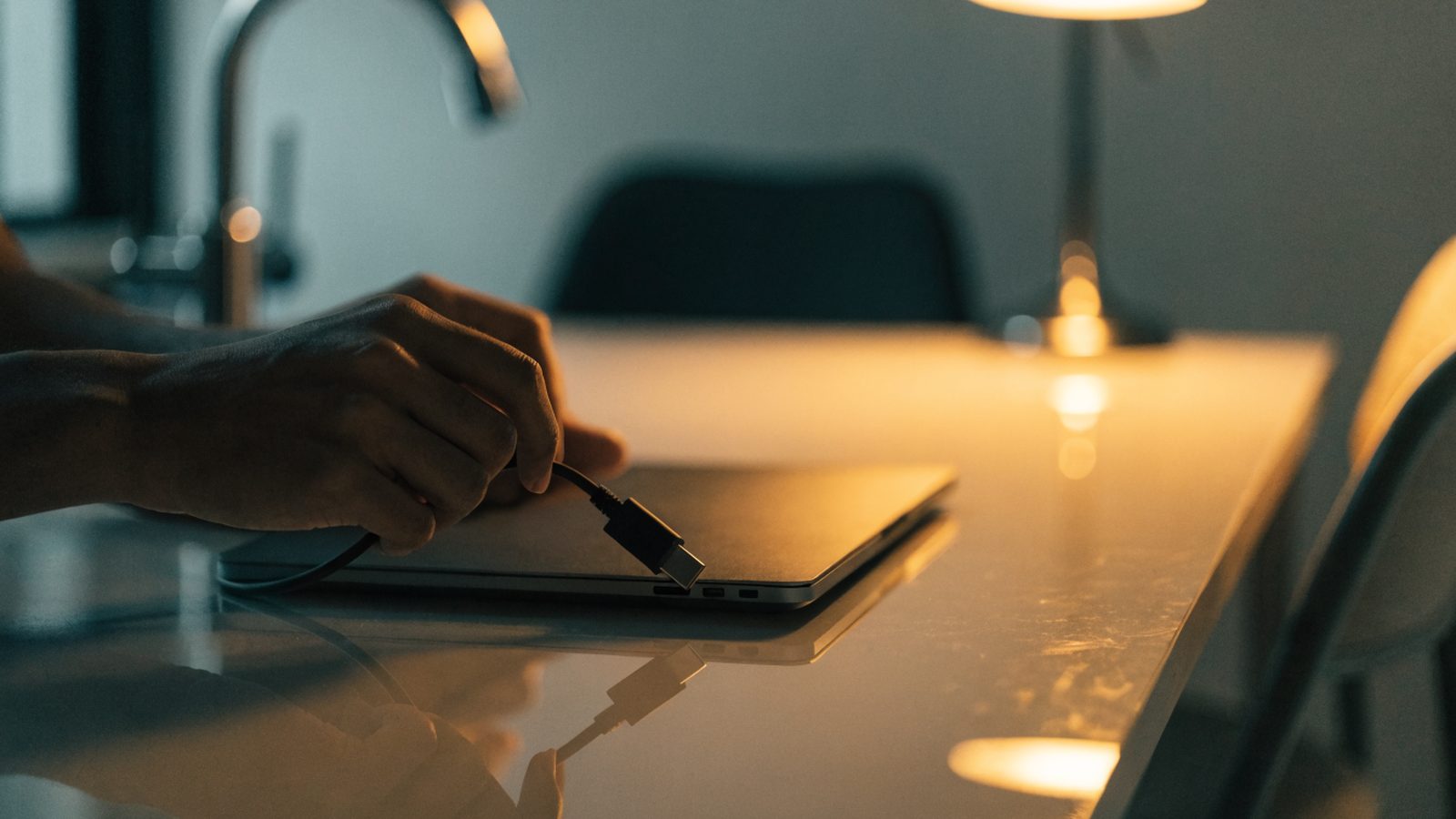
A failed wall outlet or a damaged USB-C cable is a surprisingly common cause of a Chromebook that “won’t turn on.” Test with a different outlet and, if you have access to one, a different USB-C charger entirely.
4. Let it charge untouched for 30-60 minutes
A Chromebook that’s been sitting unused for weeks can discharge below the level needed to power on at all, even briefly. Plug it in and leave it completely alone (no button presses) for at least 30 minutes before trying again.
5. Check for physical damage
Inspect the charging port for bent pins, debris, or looseness. A charging port that’s become loose from repeated plugging and unplugging can fail to make a solid connection even though it looks fine.
When it points to hardware
If none of the above brings any sign of life — no lights, no fan, no charging indicator, across different outlets and cables — the likely causes are a failed battery, a dead charging port, or a motherboard fault. Our motherboard failure guide covers how to distinguish between these, and finding your exact model number will help if you end up needing replacement parts.
Compare with other brands
The same diagnostic order applies across brands: see ASUS, Samsung, and the general Chromebook won’t turn on guide for additional troubleshooting steps if you’re comparing against a different machine.