Quick Answer
Power off immediately (don’t just close the lid), unplug the charger, disconnect any USB devices, and turn the Chromebook upside down in a tent position to let liquid drain out. Don’t turn it back on for at least 24–48 hours, and don’t use a hairdryer, which can push liquid deeper or melt components.
Causes
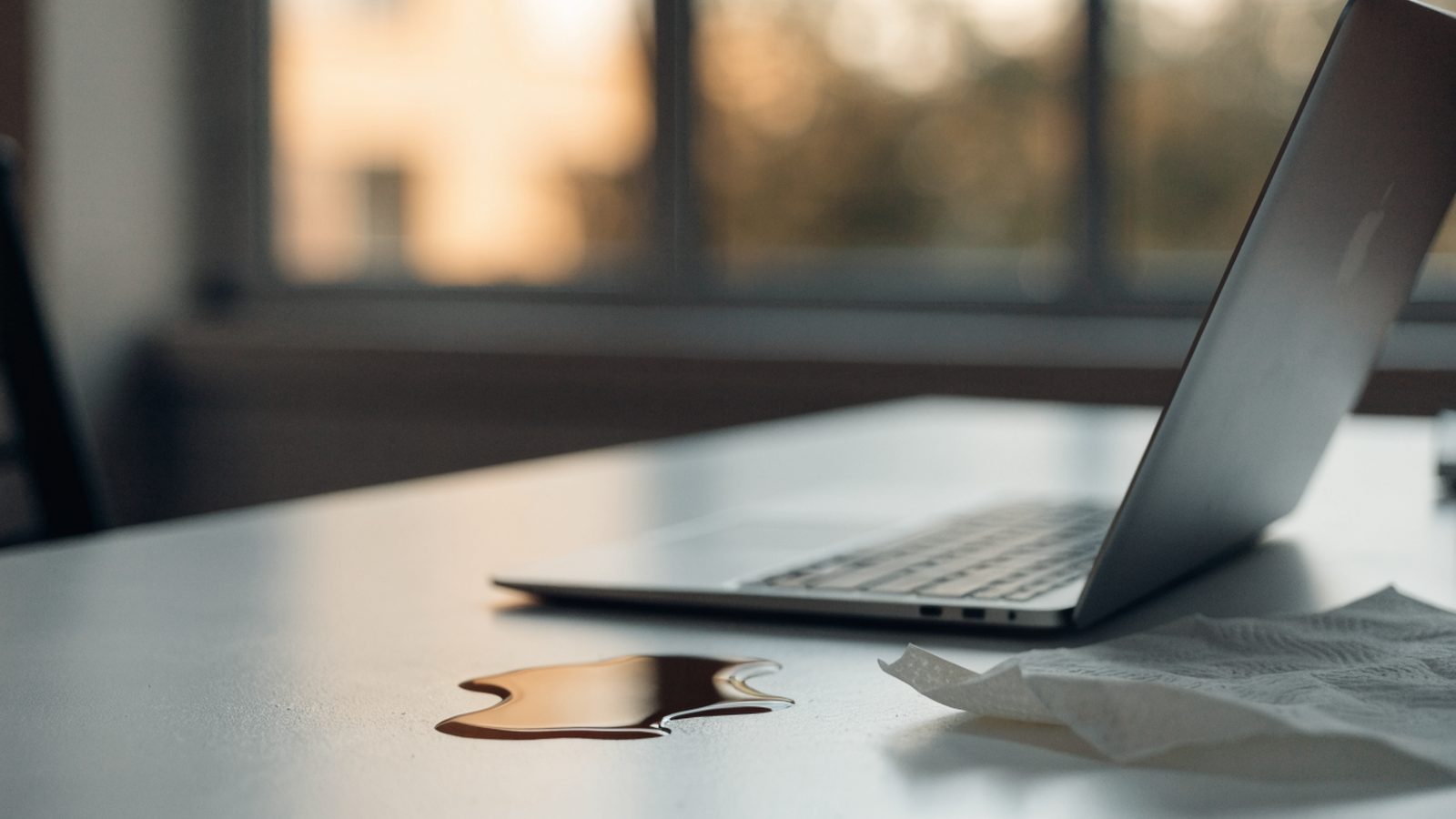
Liquid damage typically comes from drinks spilled near the keyboard, being caught in rain, or humidity exposure. What matters most isn’t the cause but the type of liquid (plain water is far less damaging than sugary or salty drinks) and how fast you react.
Fix Steps
Step 1: Power off immediately — don’t sleep it
Hold the power button to force a full shutdown rather than closing the lid, which only sleeps the device and keeps components powered while a short circuit could still occur.
Step 2: Unplug everything
Disconnect the charger and any USB-C or USB-A accessories right away. Powered ports are a common path for a liquid-caused short to spread further into the motherboard.
Step 3: Drain the liquid
Turn the Chromebook upside down in an inverted V (tent) shape so liquid drains out through the keyboard and vents rather than pooling inside near the motherboard. Don’t shake it, which can spread liquid to areas it hasn’t reached yet.
Step 4: Absorb surface liquid
Use a dry towel or paper towels to blot (not rub) any visible liquid on the keyboard and case exterior.
Step 5: Skip the rice, use silica gel or just air-dry
Rice is a myth — it doesn’t absorb moisture effectively and can leave dust in the ports. If you have silica gel packets, place the Chromebook in a sealed container with several packets for 24–48 hours. Otherwise, leave it in a dry, room-temperature area (not near heat) for the same period.
Step 6: Open the case if you’re comfortable doing so
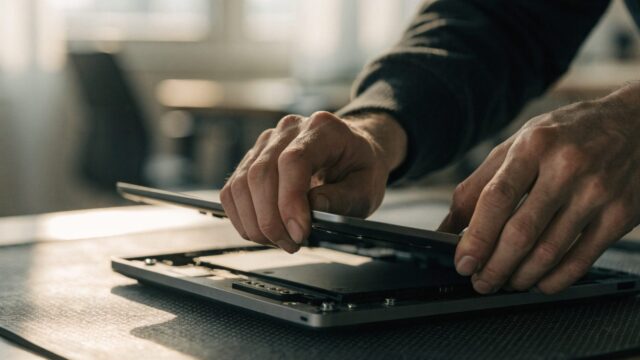
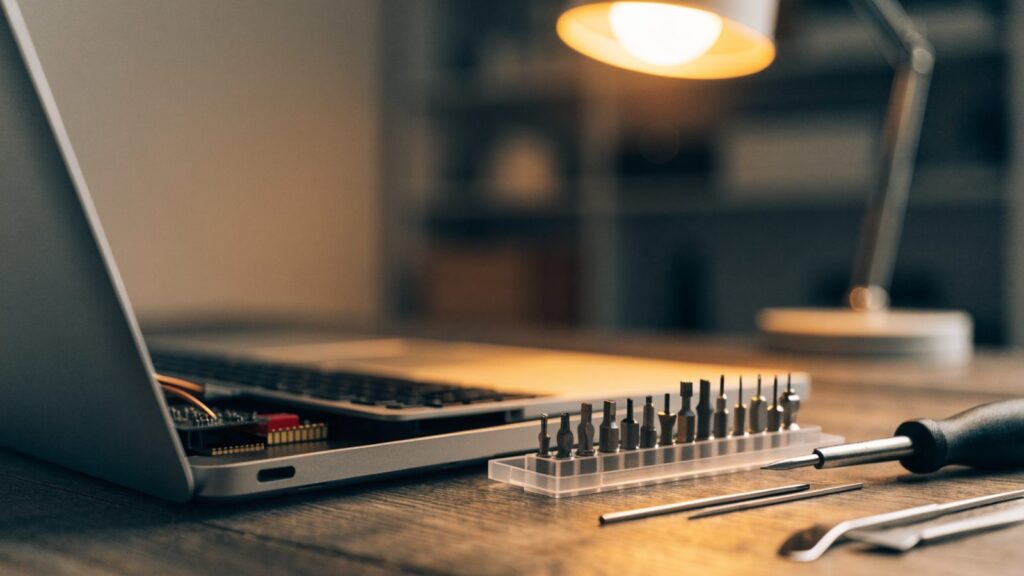
For sugary or salty spills especially, opening the case (see our teardown guide) and wiping the motherboard and keyboard deck with 90%+ isopropyl alcohol on a lint-free cloth removes residue that plain water evaporation leaves behind. Let it fully air-dry before reassembly.
Step 7: Test carefully
After at least 24–48 hours of drying, plug in the charger first without pressing power, and check for any unusual smell, smoke, or warmth. If nothing seems wrong, power on and monitor closely for the first hour of use.
Still Not Fixed?
If the Chromebook won’t power on after drying, or powers on but specific components (keyboard, trackpad, one speaker) don’t work, residue may still be affecting those circuits — see our won’t turn on guide and consider professional cleaning for corrosion, especially after a sugary drink spill.
FAQ
Is water worse than juice or soda for a Chromebook?
Sugary and salty liquids are far worse — they leave conductive residue behind after drying that can cause corrosion and short circuits weeks later, even if the device seems to work fine at first.
How long should I wait before turning it back on?
A minimum of 24 hours for plain water, and 48 hours or professional cleaning for sugary, salty, or colored liquids.
Should I try turning it on right after a spill to check if it still works?
No — powering on a wet device is the single biggest risk factor for turning a survivable spill into permanent short-circuit damage.