Quick Answer
If you’ve already ruled out software causes and the trackpad is physically cracked, unresponsive, or clicks inconsistently, replacement parts cost $15–$40 and the swap involves removing the bottom panel and disconnecting a ribbon cable — a moderate but manageable DIY repair.
Causes
- Physical damage — cracks or dents from pressure or impact.
- Worn click mechanism — the underlying clicker button wears out after years of use, causing inconsistent clicks.
- Liquid damage — spills can short the trackpad’s ribbon connector or sensor layer.
- Loose ribbon cable — sometimes it’s not the trackpad itself but a cable that’s worked loose internally.
Fix Steps
Step 1: Rule out software first
Before opening the case, work through our trackpad troubleshooting guide, which covers driver resets, sensitivity settings, and Guest Mode tests. Hardware replacement should be the last resort.
Step 2: Confirm it’s hardware
Test in Guest Mode and after a Powerwash-free hardware diagnostic (press and hold Refresh + Power to reset the EC). If the trackpad still doesn’t respond to any touch or click after these tests, and especially if there’s visible cracking, it’s a hardware issue.
Step 3: Order the right part
Trackpads are model-specific — search your exact Chromebook model number plus “trackpad replacement.” Confirm the connector type matches (most use a small ZIF ribbon connector).
Step 4: Open the case and disconnect the ribbon
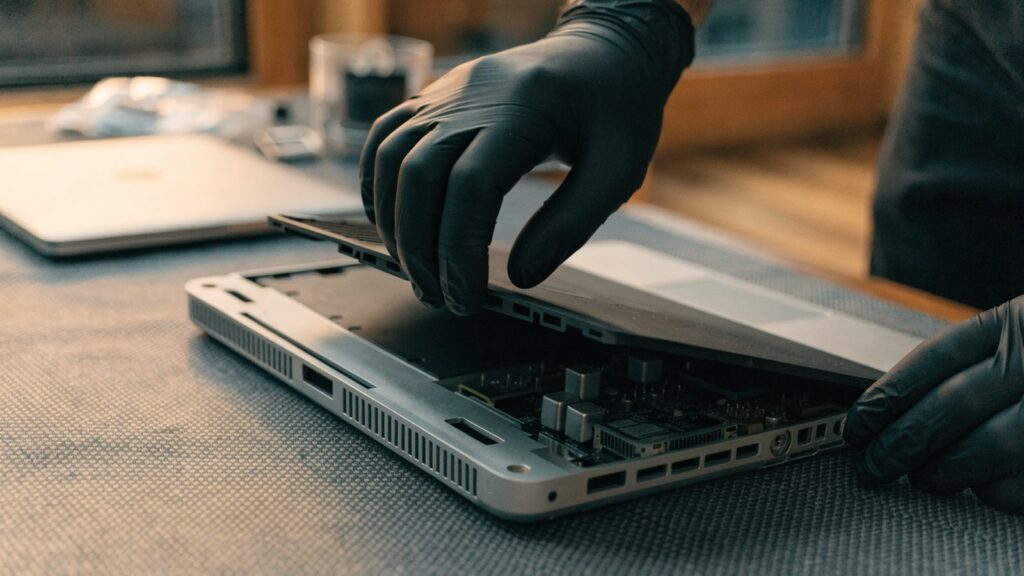
Power off and unplug the charger. Remove the bottom panel following our teardown guide. Locate the trackpad ribbon cable connector on the motherboard, flip up the small locking flap with a spudger, and gently slide the ribbon out.
Step 5: Remove and replace the trackpad
The trackpad is usually held by 2–4 small screws and a layer of adhesive. Remove the screws, gently pry up the old trackpad, and clean any old adhesive residue before seating the new one. Reconnect the ribbon cable and close the locking flap fully — a half-latched connector is the most common reason a “replacement” still doesn’t work.
Still Not Fixed?
If the new trackpad still doesn’t respond, check the ribbon cable connection on the motherboard side again, and inspect for any bent pins on the connector itself. If it works intermittently, the ribbon cable may be pinched by the case when reassembled.
FAQ
Can I use an external mouse in the meantime?
Yes — any USB or Bluetooth mouse works as a full workaround while you source parts or decide on repair.
How much does professional trackpad replacement cost?
Typically $50–$100 including labor, depending on the model and whether the trackpad is a standalone part or fused with the palm rest assembly.
Is the trackpad the same as the palm rest?
On some models, yes — the trackpad ships as part of a larger palm rest/keyboard deck assembly, which raises the parts cost but simplifies installation.