Quick Answer
Most Chromebooks have RAM soldered directly to the motherboard, so it can’t be upgraded. Storage is often soldered eMMC too, but some higher-end and older models use a replaceable M.2 SSD. You can always add external storage via a microSD card or USB drive, which is the realistic upgrade path for most users.
Causes
Manufacturers solder RAM and storage to keep Chromebooks thin, light, and cheap to produce. This is a design choice for cost and durability, not a defect — but it does mean the specs you buy are usually the specs you keep.
Fix Steps
Step 1: Check if your model has upgradeable storage
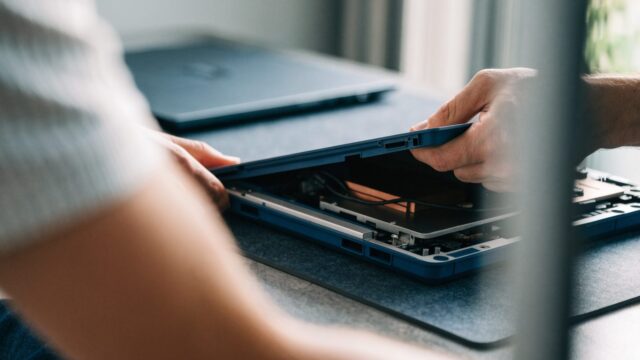
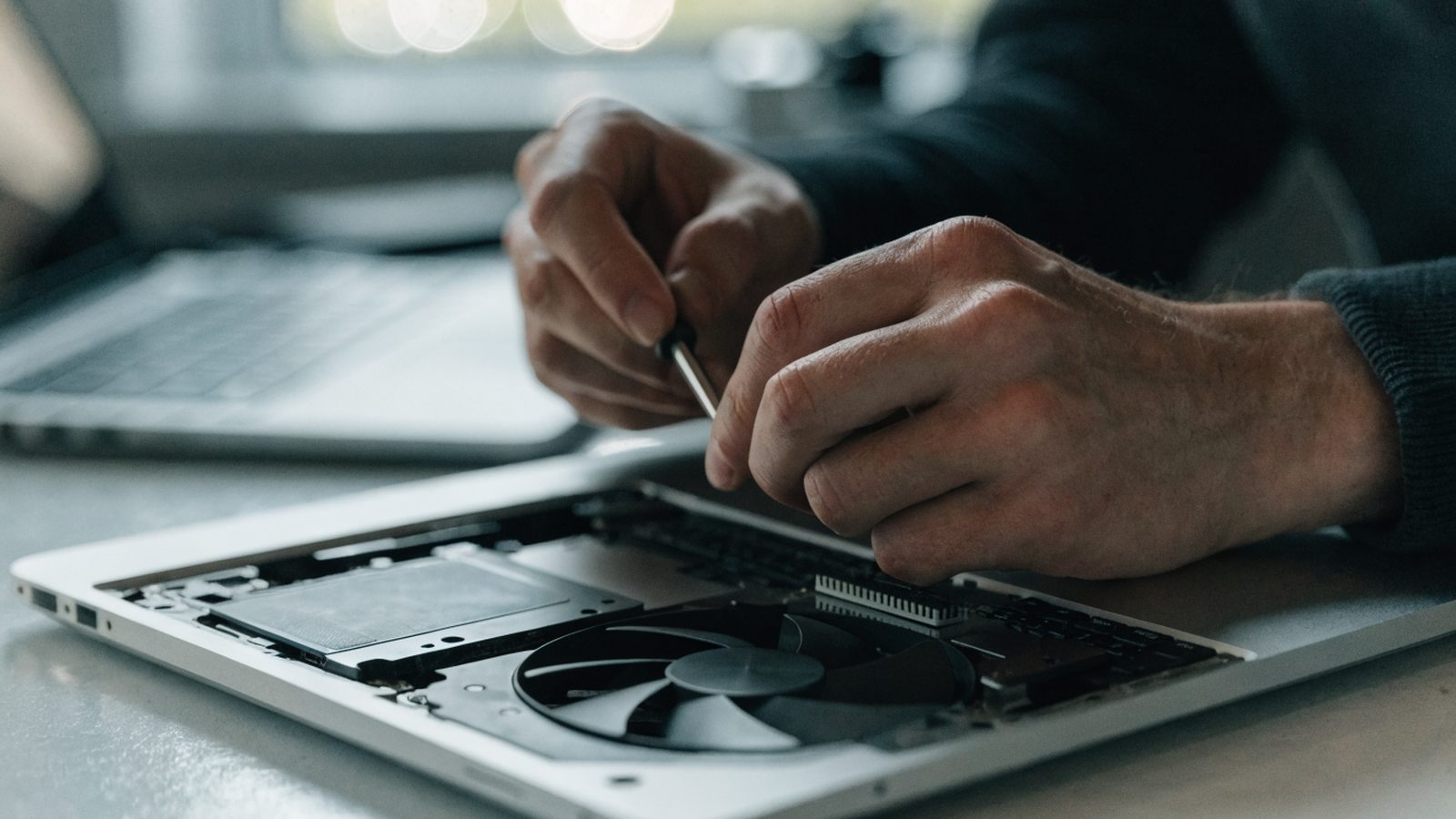
Open the case (see our teardown guide) and look for a small rectangular M.2 slot near the motherboard with a removable SSD stick, versus a soldered chip labeled eMMC. Search “[your exact model] M.2 SSD upgrade” to confirm before opening anything, since this varies even within the same product line.
Step 2: Understand why RAM is different
Unlike storage, RAM on Chromebooks is essentially never in a removable SO-DIMM slot on modern models — nearly all recent Chromebooks solder RAM directly to the board for cost and space reasons. If your model is a rare exception with a SO-DIMM slot, it will be listed in that model’s official specs or teardown documentation.
Step 3: Add external storage instead
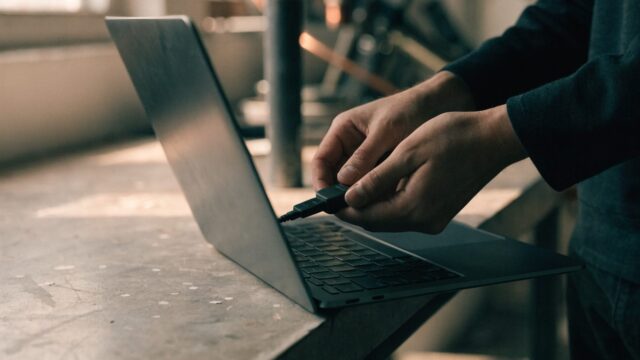
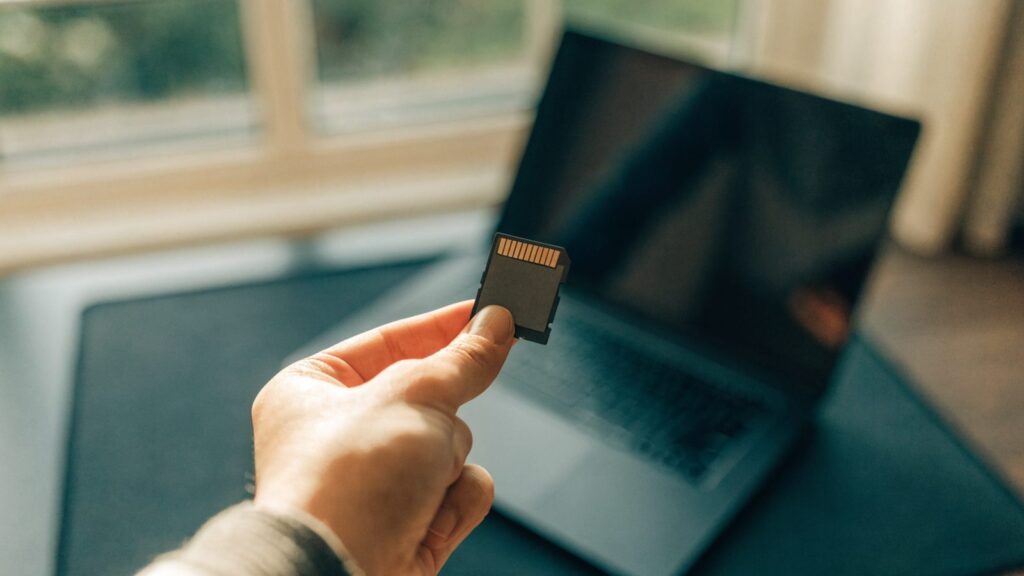
If storage is your main constraint, a microSD card (many Chromebooks have a slot) or a USB-C flash drive/external SSD adds capacity without opening the case. ChromeOS treats these as additional storage locations you can move files and even some apps to.
Step 4: Replace an M.2 SSD if your model supports it
If you confirmed a replaceable M.2 slot, purchase a compatible NVMe or SATA SSD (check which type your model uses), power down and disconnect the battery, then swap the drive following the same static-safety precautions as any internal repair. You’ll need to reinstall ChromeOS via a bootable recovery USB (created from another computer using the Chromebook Recovery Utility) afterward before the device will boot again.
Step 5: Address slowness without hardware changes
If the real goal is a faster-feeling Chromebook rather than more storage specifically, most performance gains come from reducing startup apps, clearing cache, and limiting open tabs — see our speed guide for the full list of no-cost fixes.
Still Not Fixed?
If storage is chronically full even after adding external storage, or performance issues persist regardless of free space, the bottleneck is likely the processor or soldered RAM amount, which means the only real fix is a newer device.
FAQ
Can I upgrade RAM on any Chromebook?
Essentially no on current models — RAM is soldered on virtually every Chromebook sold in the last several years, regardless of price point.
Does adding a microSD card speed up my Chromebook?
It adds storage space but won’t improve processing speed or RAM-related slowdowns, since it doesn’t change the device’s memory or processor.
Is it worth buying a Chromebook specifically for its upgrade potential?
If longevity matters to you, buying a model with more RAM and storage upfront is far more reliable than hoping to upgrade later, since so few models support it.