Quick Answer
Screen flickering on a Lenovo Chromebook is most often a graphics rendering glitch tied to a specific app or refresh rate setting, not a failing panel. A hard reset and a check of display settings resolve most cases; flickering tied to opening or flexing the lid points to a loose display cable instead.
Causes
- Graphics driver glitch — ChromeOS occasionally mishandles the display refresh, especially during video playback or after waking from sleep.
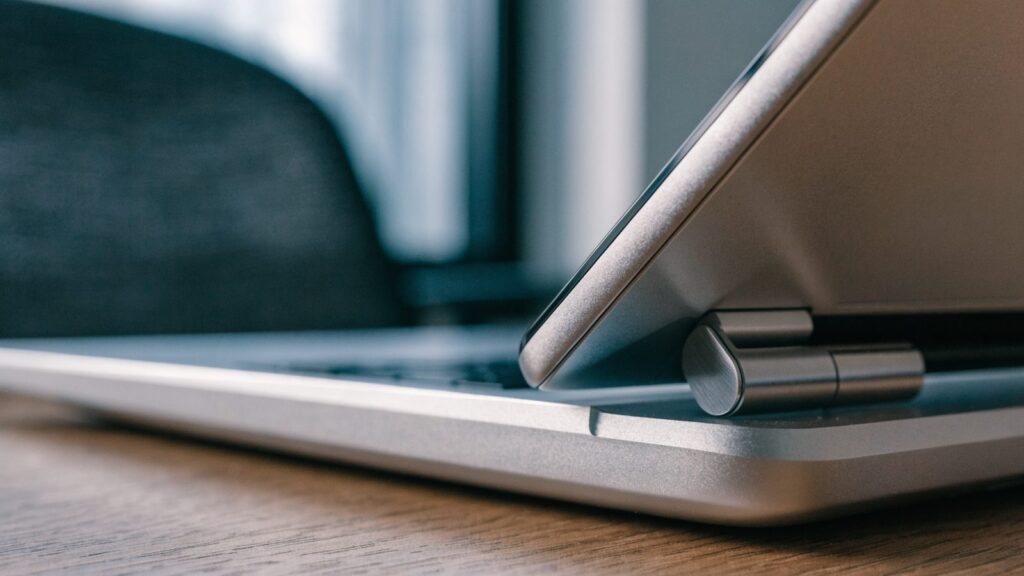
- Loose display cable — common on Lenovo’s convertible models (Flex, Duet) where the hinge flexes the ribbon cable thousands of times over the device’s life.
- Refresh rate or resolution mismatch — an external monitor or a recently changed display setting can cause flickering, especially at the edges of a supported refresh range.
- Failing backlight — less common, but a backlight nearing failure can flicker especially at low brightness levels.
How to Fix It
1. Force a hard reset
Hold Refresh + Power for 10 seconds. This resets the display pipeline and resolves flickering caused by a stuck rendering state, which is the most common cause.
2. Check if it happens at a specific brightness level
Flickering that only appears at low brightness settings often points to a backlight nearing the end of its life rather than a software issue. Try raising brightness to see if the flicker disappears.
3. Test with the lid at different angles
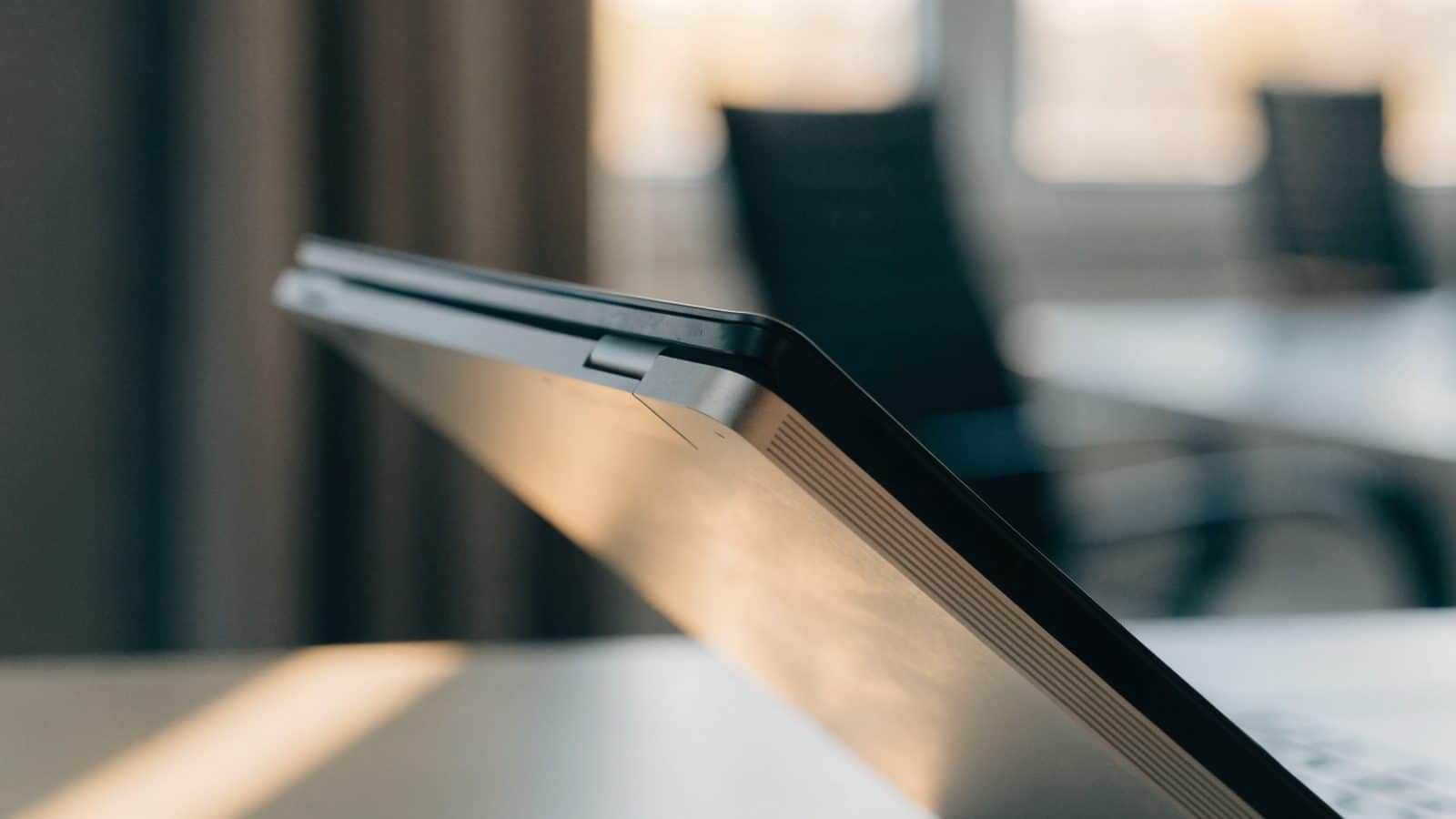
On convertible Lenovo models, gently flex the lid slightly while watching for the flicker to change. If it responds to lid position, the display ribbon cable is loose — this points to a hardware fix rather than a settings change.
4. Disconnect any external display
If an external monitor is connected, unplug it and see if the built-in screen flickers on its own. A resolution or refresh rate conflict between the two displays is a common and easily fixed cause.
5. Update ChromeOS
Go to Settings > About ChromeOS > Check for updates. Display driver fixes ship in regular ChromeOS updates, and an outdated version can carry a bug that’s already been patched.
6. Check if it’s isolated to one app or website
If flickering only happens during video playback or on one specific site, it’s likely a rendering issue with that content rather than the display hardware. Try the same content in an Incognito window to rule out an extension conflict.
Still Not Fixed?
If the flickering responds to the lid angle being flexed, the display cable itself needs reseating or replacement — this requires opening the chassis; see our teardown basics guide before attempting it. If it happens consistently regardless of content, angle, or a Powerwash, the panel or backlight is the more likely cause, and a screen replacement is the practical fix.
FAQ
Is screen flickering dangerous to the display?
Not by itself, but it’s worth addressing since a genuinely failing backlight or cable will typically worsen over time rather than resolve on its own.
Does a hard reset fix flickering permanently?
It resolves flickering caused by a stuck rendering state, which is the most common cause. If the flicker returns immediately or is tied to lid movement, it’s a hardware issue a reset won’t permanently fix.
Can an external monitor cause my Chromebook’s built-in screen to flicker?
Yes — a resolution or refresh rate mismatch between two connected displays can occasionally cause this. Disconnecting the external display is a quick way to test it.