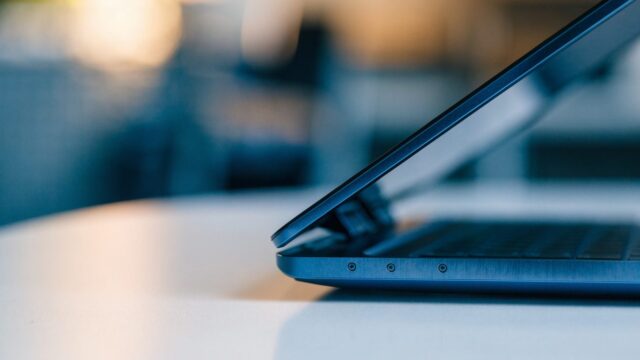
Quick answer: Screen flickering on an Acer Chromebook is usually caused by a display refresh rate mismatch, a graphics glitch after an update, or a loose display cable — not a dead panel. Try adjusting the display settings and restarting first; if flickering only happens at certain screen angles, it’s likely a cable issue.
Why Your Acer Chromebook Screen Flickers
- Graphics driver glitch after a ChromeOS update, more frequently reported right after major version rollouts.
- Refresh rate or resolution mismatch, especially when an external monitor was recently connected and disconnected.
- Night Light or Dark Theme transitions occasionally causing a brief flicker as the color profile shifts.
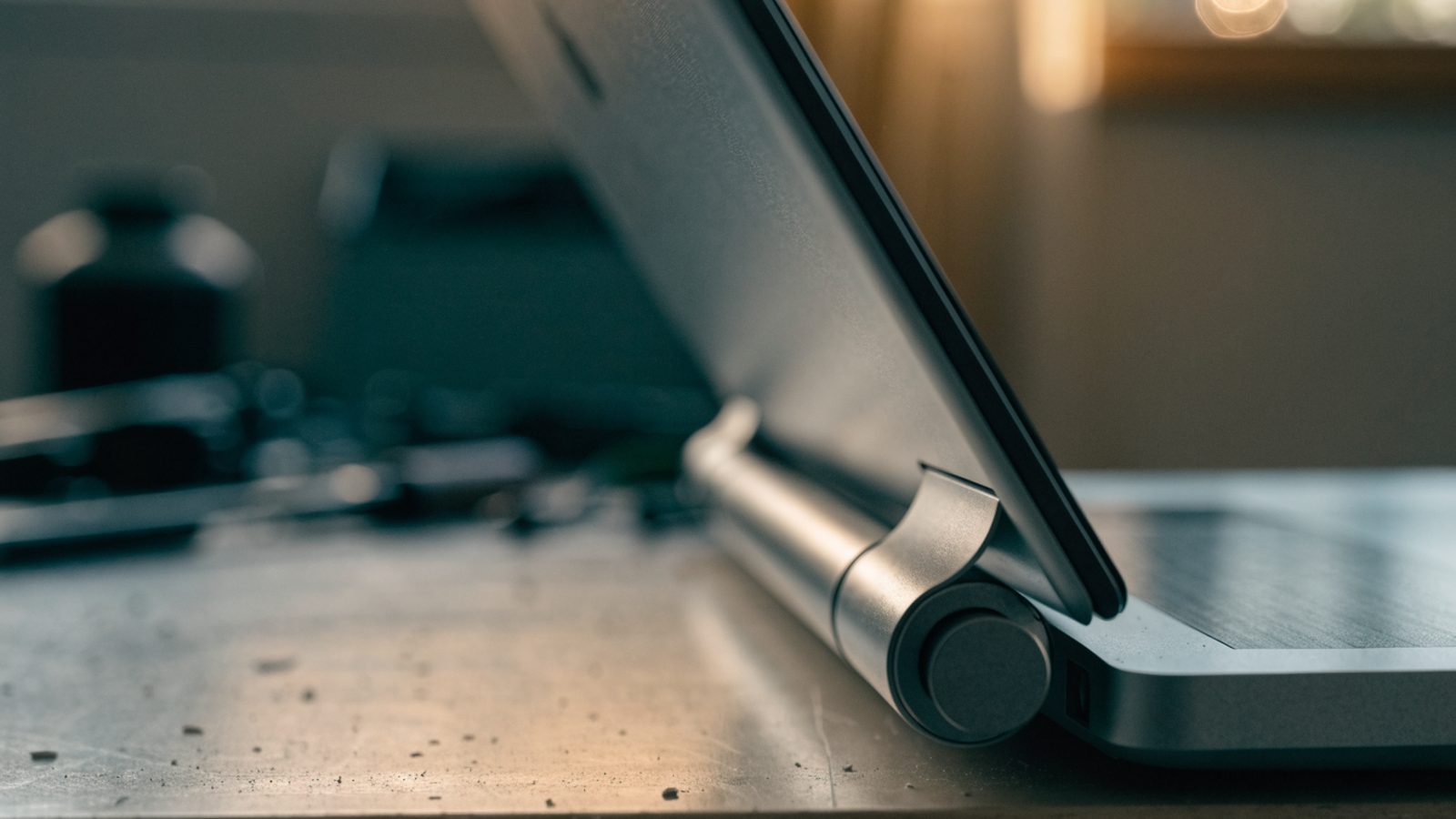
- A loose display cable connecting the screen to the motherboard through the hinge — common on Acer Chromebooks after repeated opening and closing.
- A failing display panel or backlight, usually after a drop or years of heavy use.

How to Fix Screen Flickering on an Acer Chromebook
1. Restart the Chromebook
A simple restart clears most temporary graphics glitches, especially ones that appeared right after a ChromeOS update.
2. Disconnect any external display
If you’ve recently used an external monitor, unplug it and check if flickering stops. A resolution or refresh rate conflict can persist even after disconnecting until the Chromebook is restarted.
3. Turn off Night Light temporarily
Go to Settings > Displays > Night Light and disable it. If flickering stops, re-enable it with a fixed color temperature instead of the automatic schedule, which can sometimes cause brief transition flickers.
4. Check for a pending ChromeOS update
Go to Settings > About ChromeOS > Check for updates. Graphics driver bugs are commonly patched within a few weeks of a major ChromeOS release.
5. Gently move the screen through its full hinge range
With the Chromebook on, slowly open and close the lid while watching for flickering that gets worse at specific angles. This is a strong sign the display cable is loose or pinched inside the hinge, not a software issue.
6. Test in Guest Mode
If flickering only happens in your regular profile, it may be tied to a specific extension or theme. Testing in Guest Mode rules out anything installed in your account.
7. Powerwash if it started after a software change
If flickering began right after an update or new extension and persists across restarts, Settings > Reset settings > Powerwash can reset the graphics stack. Back up your files first.
Still Not Fixed?
If flickering gets noticeably worse when you flex the lid or press near the hinge, the display cable is likely loose or damaged inside the hinge assembly. This requires opening the Chromebook to reseat or replace the cable — see our Chromebook Screen Replacement Cost guide for what a hinge or panel repair typically costs.
FAQ
Why does my Acer Chromebook only flicker when I move the screen?
This is a classic sign of a loose or pinched display cable inside the hinge, not a software problem — it needs a physical repair.
Can a ChromeOS update really cause screen flickering?
Yes, graphics driver regressions do occasionally ship in ChromeOS updates and are typically fixed in a follow-up patch within a few weeks.
Does Night Light cause permanent flickering?
No — at most it causes a brief flicker during the color temperature transition at scheduled times, not continuous flickering.