Quick Answer
If keys on your HP Chromebook aren’t registering, first rule out software: restart, test in Guest Mode, and check whether an external keyboard works fine over Bluetooth. If specific keys are unresponsive across every mode, especially after a spill, the issue is almost always physical, either debris under the keys or a damaged keyboard membrane on HP’s chiclet-style keyboards.
Common Causes on HP Chromebooks
- Debris or crumbs stuck under individual keys
- Liquid spill damaging the keyboard membrane
- A software glitch affecting keyboard input system-wide
- A loose keyboard ribbon cable after a drop
- Sticky keycaps from spilled drinks or food residue
- Accidentally enabled accessibility settings remapping keys
Step-by-Step Fixes
1. Restart the Chromebook
A simple restart clears temporary input glitches. If keys start working again, it was a software hiccup, not hardware.
2. Test with an External Keyboard
Pair a Bluetooth or USB keyboard. If it types normally, the problem is isolated to the built-in keyboard hardware, not ChromeOS itself.
3. Check for Debris
Turn the Chromebook off, tilt it at a 75-degree angle, and gently tap the base while running compressed air between the keys. This dislodges crumbs and dust without removing keycaps.
4. Test in Guest Mode
If the keyboard works fine in Guest Mode, a stuck accessibility setting or extension in your profile is the cause rather than the keyboard itself.
5. Check Accessibility Settings
Go to Settings > Accessibility and confirm sticky keys, on-screen keyboard overrides, or key remapping aren’t accidentally enabled.
6. Inspect for Spill Damage
If specific keys stopped working right after a spill, power off immediately (if you haven’t already), unplug the charger, and let it dry fully upside down for at least 24 hours before testing again.
Still Not Fixed?
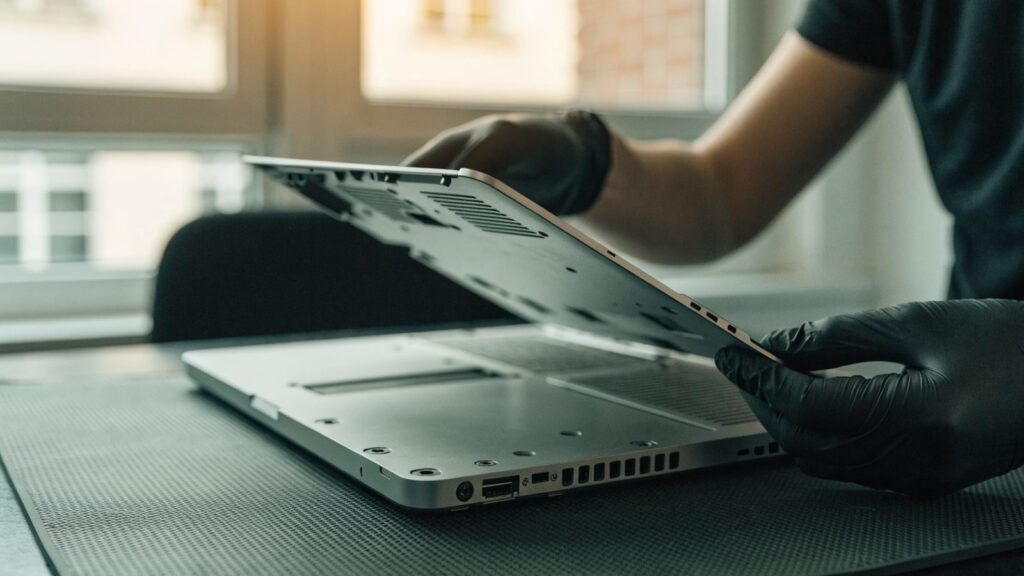
If specific keys remain dead after cleaning, restarting, and testing in Guest Mode, and there’s no spill history, a loose keyboard ribbon cable or worn-out membrane is the likely cause. HP keyboards use a flat ribbon connector to the motherboard that can shift after a drop. At that point, a keyboard or input hardware replacement (the same repair process HP uses for trackpads) is the reliable fix.
FAQ
Can I use an external keyboard permanently on my HP Chromebook?
Yes. Bluetooth and USB keyboards work fully with ChromeOS, including Chrome-specific keys like search and volume, as a practical workaround while you decide on a repair.
Is it safe to remove keycaps to clean under them myself?
It’s possible but risky on HP’s low-profile chiclet keys, the plastic retainer clips are small and can snap. Compressed air without removing keycaps is safer for most debris issues.
How much does an HP Chromebook keyboard replacement cost?
Parts and labor typically run less than a screen or motherboard repair, since the keyboard assembly is one of the more accessible components on most HP Chromebook designs.