Quick Answer
If your Chromebook’s microphone isn’t working, first check that it isn’t muted in Settings > Audio or via a keyboard mute key, then confirm the app you’re using has microphone permission and the correct input device is selected. Most mic problems are a settings or permissions issue, not a hardware failure.

Common Causes
- The microphone is muted system-wide or within the app
- The wrong input device is selected in ChromeOS or the app
- The app doesn’t have microphone permission
- Dust or debris is blocking the microphone opening
- A temporary software glitch after a ChromeOS update
- A hardware fault in the built-in microphone
Step-by-Step Fixes
1. Check the Mic Isn’t Muted
Click the status area in the bottom-right corner and check the microphone icon isn’t crossed out. Some Chromebooks also have a physical mic-mute key in the top row — press it once and check if an on-screen indicator changes.
2. Grant Microphone Permission to the App
For web apps, click the lock icon in the address bar, open Site settings, and set Microphone to Allow. For Android apps, go to Settings > Apps > [App name] > Permissions and enable Microphone.
3. Select the Correct Input Device
Open Settings > Device > Audio and check which microphone is set as the input under “Input device.” If you’re using a headset or external mic, make sure it’s selected instead of the built-in one, or vice versa.
4. Test the Microphone in ChromeOS Settings
In Settings > Audio, speak near the Chromebook and watch the input level bar. If it moves, the microphone is working at the hardware level and the issue is app-specific.
5. Restart the Chromebook
A full restart clears audio driver glitches that can silence the mic after a ChromeOS update or a long sleep period. This resolves the issue in many cases where the hardware test passes but apps still don’t hear you.
6. Check for Physical Blockage or Damage
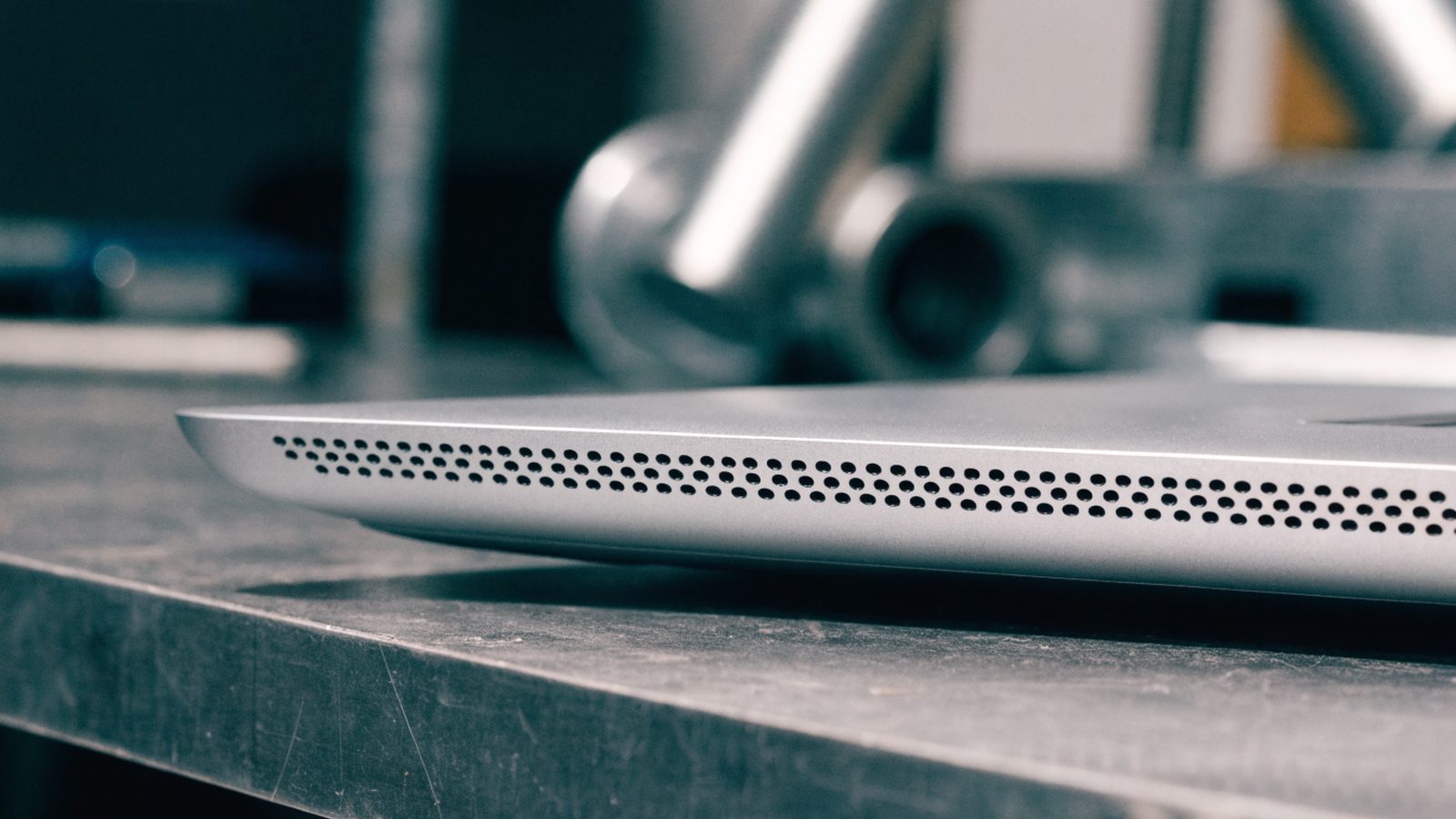
Inspect the microphone opening (usually near the camera or on the side edge) for dust, lint, or case interference. Gently clean it with compressed air, and remove any case or screen protector that might be covering the opening.
Still Not Fixed?
If the input level bar in Settings never moves no matter what you try, the built-in microphone itself has likely failed. This is a hardware repair rather than a software fix — see our Hardware Repair guides, or use a USB or Bluetooth microphone as a workaround in the meantime.
FAQ
Why does my Chromebook mic work in one app but not another?
This almost always points to a per-app permission setting. Check the microphone permission for that specific app or website, since ChromeOS and Android apps manage permissions separately.
How do I test if my Chromebook microphone is broken?
Go to Settings > Audio and speak near the device while watching the input level indicator. If it stays flat across a restart and permission check, the hardware itself is the likely cause.
Can I use an external microphone on a Chromebook?
Yes. Most Chromebooks support USB and Bluetooth microphones, and headsets with an inline mic work through the headphone jack where available. Select the external device in Settings > Audio after connecting it.
Fixes by Chromebook Brand
Microphone placement and audio hardware vary between manufacturers, so a silent mic is not always caused by the same thing. If you know your brand, its dedicated guide goes further: