If your ASUS Chromebook trackpad is unresponsive, clicking randomly, or physically cracked, software fixes won’t help. This guide covers when you actually need a trackpad replacement, what it costs, and how the repair works on ASUS models like the Chromebook Flip, CX1, and CX34.
Esc + Refresh + Power a hard reset and check Settings > Device > Touchpad — a dead trackpad after a ChromeOS update is often a settings or driver issue, not hardware.Why Would an ASUS Chromebook Trackpad Need Replacing?
Common reasons the trackpad itself — not the software — is at fault:
- Visible crack, dent, or the surface has come unglued from the chassis
- Random phantom clicks or cursor jumps that persist in the ChromeOS diagnostics app and even in recovery mode
- No response at all, but an external USB or Bluetooth mouse works fine
- Liquid spilled directly on the trackpad area and it stopped responding right after
If you’ve already tried our ASUS Chromebook trackpad not working guide and the pad still fails in recovery mode (which runs independent of your ChromeOS install), it’s a hardware problem.
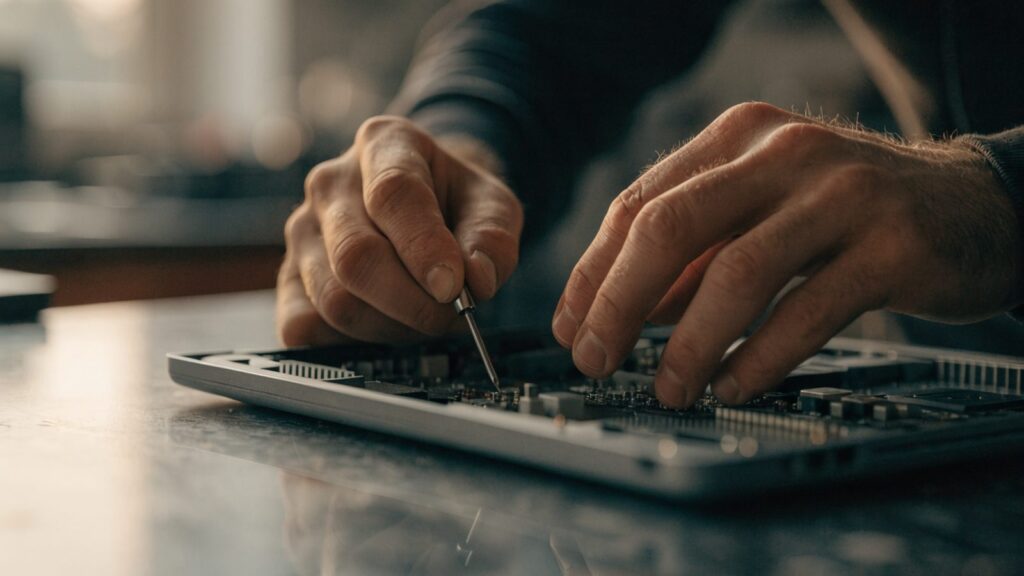
Confirm It’s Hardware, Not Software
- Reboot into recovery mode by holding
Esc + Refreshand pressingPower. If the trackpad doesn’t move the cursor on the recovery screen, it’s hardware. - Open the ChromeOS diagnostics app (search “Diagnostics” in the launcher) and run the touchpad test. Dead zones or no input confirms a physical fault.
- Plug in a USB mouse — if that works normally, the trackpad’s ribbon cable or sensor is the problem, not the ChromeOS input stack.
What Replacement Costs
Parts pricing depends on the model:
- Entry models (CX1, C204, C223): $20–$40 for an aftermarket trackpad module with ribbon cable.
- Mid-range and 2-in-1 (Flip C433, CX34): $35–$70, since the trackpad is often bonded to the palm rest assembly rather than sold separately.
- Labor at a repair shop: $60–$120, since the palm rest usually has to come off entirely, and on 2-in-1 models the hinge assembly may need partial disassembly.
⚠ This erases local data if you also need to reset ChromeOS afterward — back up files to Google Drive first, just in case a full teardown requires a Powerwash to clear residual driver errors.
How the DIY Swap Works
- Power off the Chromebook completely and remove the battery connector if accessible (check your model’s teardown guide — ASUS uses different screw patterns per line).
- Remove the bottom panel screws, including any hidden under rubber feet.
- Lift the bottom cover with a plastic pry tool, working around the edges slowly to avoid snapping clips.
- Locate the trackpad ribbon cable connector on the motherboard, usually secured with a small locking flap. Flip the flap up and slide the cable out.
- Unscrew the trackpad module (typically 2–4 small screws) and lift it out.
- Install the new trackpad, reseat the ribbon cable, and close the locking flap firmly.
- Reassemble the bottom cover and test the touchpad in the diagnostics app before fully closing the last screws, in case reseating is needed.
Still Not Working?
If the new trackpad still doesn’t register input, the fault is more likely the motherboard’s touchpad controller, not the pad itself. At that point, a full motherboard replacement is usually not worth the cost relative to buying a used or budget replacement Chromebook — see our best Chromebooks under $300 guide for options. If the unit is still under ASUS warranty, contact ASUS support before opening the case, since DIY disassembly can void it.
FAQ
Can I just use a USB mouse instead of replacing the trackpad?
Yes, a wired or Bluetooth mouse is a fine permanent workaround if you don’t want to open the case. Pair it under Settings > Bluetooth or plug it into any USB-A/USB-C port.
Is the ASUS Chromebook trackpad covered under warranty?
Physical damage (cracks, liquid) usually isn’t covered. A trackpad that stops working with no visible damage may be covered if the Chromebook is still within its standard 1-year warranty period.
Do all ASUS Chromebook trackpads use the same part?
No. Parts are model-specific — a CX1 trackpad won’t fit a Flip C433. Always match the exact model number (see our guide to finding your Chromebook’s model number) before ordering a part.