Quick Answer
Connect the monitor with an HDMI or USB-C cable, and ChromeOS detects it automatically within a few seconds. Go to Settings > Device > Displays to choose between extending your desktop or mirroring it, and to set the correct resolution and arrangement.
What You Need
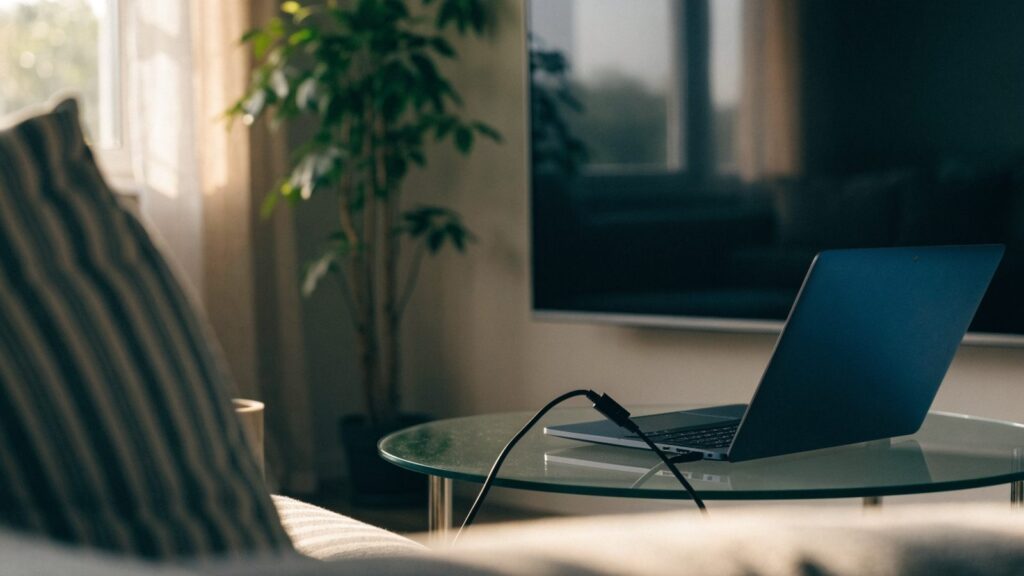
Most Chromebooks output video over USB-C using DisplayPort Alt Mode, which works with a USB-C to HDMI cable, a USB-C hub, or a USB-C monitor directly. Some models still have a dedicated HDMI or Mini-DisplayPort port. Check your exact model’s ports if you’re unsure, since USB-C ports on some budget Chromebooks are charging-only and don’t support video output.
How to Set It Up
Step 1: Connect the monitor
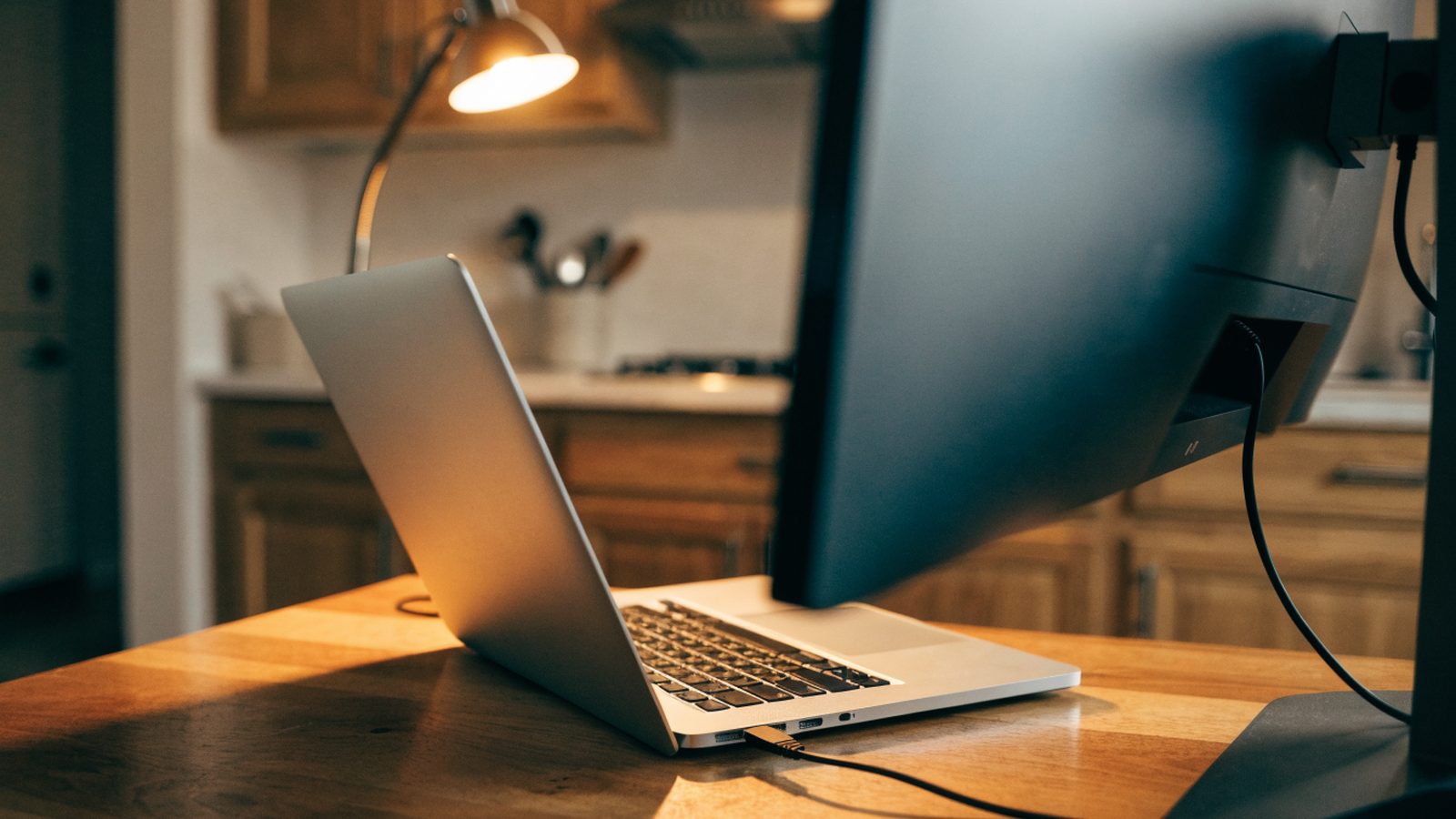
Plug in the cable or adapter between the Chromebook and the monitor, and power on the monitor if it isn’t already. ChromeOS should detect it within a few seconds and extend the desktop automatically.
Step 2: Open display settings
Go to Settings > Device > Displays to see both screens represented visually.
Step 3: Choose extend or mirror
Toggle “Mirror Built-in Display” on to show the same content on both screens, or leave it off to extend your desktop across two separate work areas.
Step 4: Arrange the displays correctly
Drag the monitor’s rectangle in the Displays settings to match its physical position relative to your Chromebook screen, so the cursor moves naturally between them.
Step 5: Set resolution and orientation
Under each display’s settings, adjust resolution if text looks too small or blurry, and change orientation if the monitor is mounted in portrait mode.
Still Stuck?
If the monitor isn’t detected at all, try a different cable or port first, since a charging-only USB-C port is a common cause on lower-end models. If the picture appears but flickers or shows the wrong resolution, check the cable connection and try a lower resolution setting as a workaround. For orientation issues specific to the Chromebook’s own screen rather than the external one, see our fix for a rotated or upside-down screen. If you’re setting this up because the built-in screen is damaged, our guide on cracked screen options covers using an external display as a stopgap.
FAQ
Can I use two external monitors at once?
It depends on the model. Some Chromebooks with more capable graphics support two external displays plus the built-in screen, while many budget models only support one at a time.
Why is there no sound coming from my monitor’s speakers?
Go to Settings > Audio and select the monitor as the output device manually, since ChromeOS doesn’t always switch audio output automatically when a display is connected.
Does a USB-C hub work as well as a direct cable?
Yes, as long as the hub supports DisplayPort Alt Mode for video, though very cheap hubs sometimes cap resolution or refresh rate lower than a direct connection would.