Quick Answer
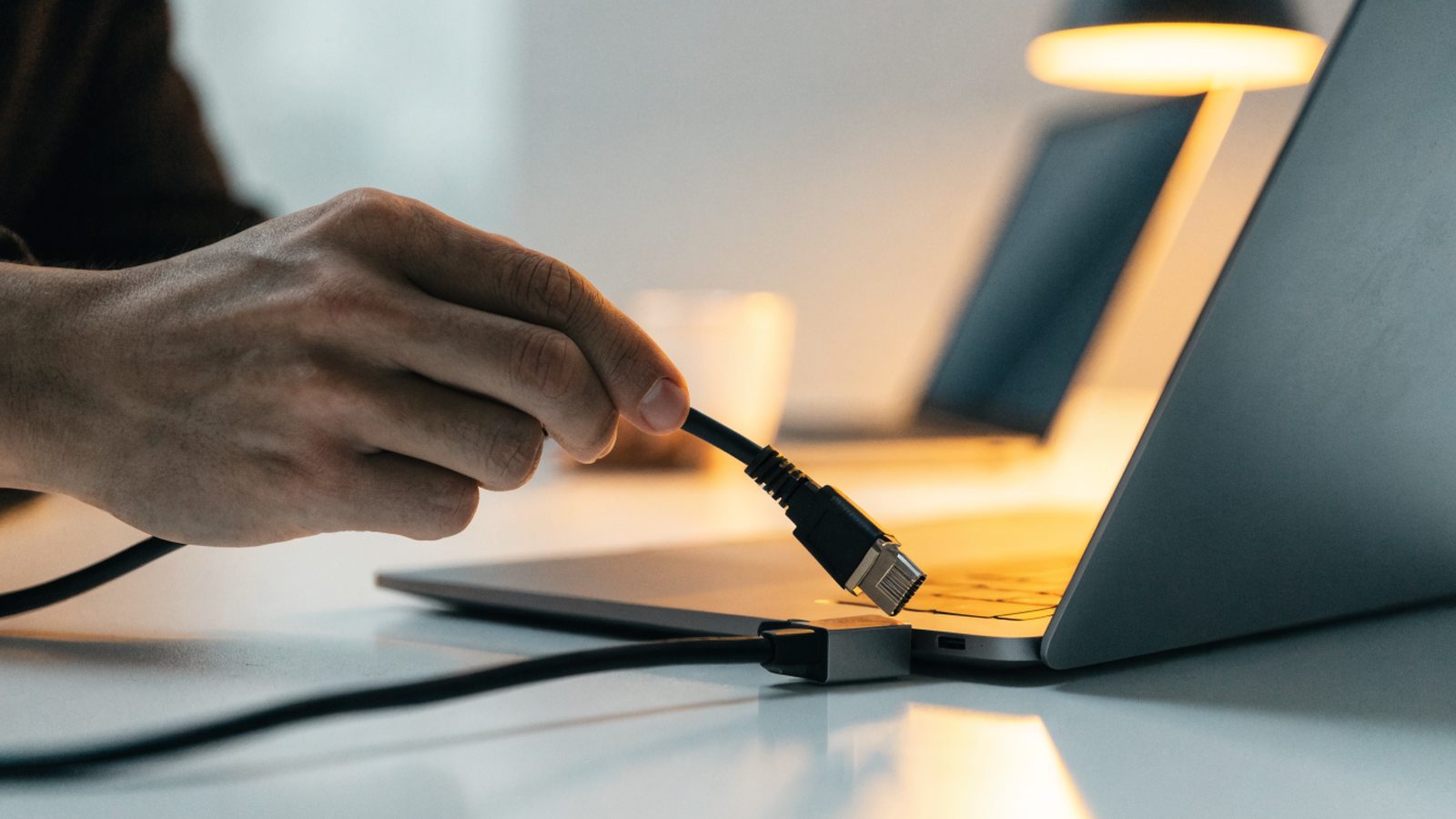
Plug a USB-C to Ethernet adapter into any USB-C port and connect the Ethernet cable. ChromeOS detects most standard adapters automatically and switches network priority to the wired connection with no setup needed. If it’s not detected, the adapter’s chipset (not the Chromebook) is usually the problem.
Why Use Ethernet on a Chromebook
Most Chromebooks don’t have a built-in Ethernet port, so a USB-C adapter is the only way to get a wired connection. A wired connection is worth it when Wi-Fi is unreliable, when you need the lowest possible latency for video calls or gaming, or when you’re on a managed network that requires or prefers wired access for compliance reasons.
Fix Steps
Step 1: Confirm chipset compatibility before buying
Not every USB-C to Ethernet adapter works with ChromeOS out of the box. Adapters built around common chipsets (ASIX AX88179 and similar) tend to work reliably, while some budget adapters using less common chipsets lack a ChromeOS-compatible driver entirely. Checking for “ChromeOS compatible” or “Chromebook compatible” on the listing avoids this.
Step 2: Plug in the adapter and cable
Connect the adapter to any USB-C port on the Chromebook, then plug the Ethernet cable into the adapter and the other end into your router or wall jack. ChromeOS should show a wired connection icon in the status area within a few seconds.
Step 3: Confirm ChromeOS is prioritizing Ethernet
Go to Settings > Network and check that “Ethernet” appears as connected above Wi-Fi. ChromeOS automatically prefers a wired connection when both are active, so you shouldn’t need to manually disable Wi-Fi.
Step 4: If it’s not detected, try a different port
Some Chromebooks have USB-C ports wired differently for power versus data. Try the port on the opposite side of the device, since one side is sometimes power-only or has a different controller.
Step 5: Check for a firmware or driver issue
Unplug the adapter, restart the Chromebook, and reconnect it after the restart completes. ChromeOS occasionally needs a fresh USB enumeration to recognize an adapter that was already plugged in during boot.
Step 6: Test the adapter on another device
If it still doesn’t work, plug the same adapter into another computer to confirm the adapter itself isn’t faulty before assuming it’s a ChromeOS compatibility issue.
Still Not Fixed?
If Ethernet connects but internet still doesn’t work, the problem is likely on the network side rather than the adapter. Our guide on a Chromebook connected but with no internet covers diagnostic steps that also apply to a wired connection. If you need the Ethernet connection to use a fixed address, see our guide on setting a static IP.
FAQ
Do I need to install a driver manually?
No, ChromeOS includes built-in drivers for common Ethernet adapter chipsets, so there’s no driver installation step like on Windows or macOS. If it’s not detected, it’s a compatibility gap rather than a missing driver you can install.
Can I use Ethernet and Wi-Fi at the same time?
Both can be connected at once, but ChromeOS routes traffic through Ethernet by default when both are active, since it treats a wired connection as more reliable.
Will a USB-C hub with an Ethernet port work the same way?
Yes, a multiport hub with Ethernet built in works the same as a dedicated adapter, as long as the Ethernet chipset inside it is ChromeOS-compatible.