Chromebooks are already efficient compared to full Windows or Mac laptops, but a few habits and settings can stretch a single charge from “barely makes it through the day” to comfortably lasting a full workday.
Quick answer: The biggest wins are lowering screen brightness, turning on Battery Saver when unplugged, closing unused tabs and background apps, and disabling the keyboard backlight when you don’t need it. Together, these can add hours to your runtime with no real downside for everyday browsing and document work.
Settings Changes That Make the Biggest Difference
- Lower screen brightness. The display is typically the single largest power draw. Even dropping brightness by 20-30% noticeably extends runtime.
- Turn on Battery Saver when you’re not plugged in. It dims the screen further, throttles the CPU, and enables Chrome’s Energy Saver automatically — see how ChromeOS Battery Saver mode works.
- Turn off the keyboard backlight in well-lit conditions — it’s a small but constant drain if left on unnecessarily.
- Lower or turn off screen timeout delay so the display sleeps sooner when you step away, under
Settings>Device>Power. - Disconnect Bluetooth and unused peripherals when you don’t need them.

Browser and App Habits
- Close tabs you’re not actively using — each open tab, especially ones auto-refreshing content, uses some CPU and memory in the background
- Review and disable Chrome extensions you don’t regularly use: see how to manage Chrome extensions on a Chromebook
- Avoid running multiple high-demand Android or Linux apps simultaneously if battery life matters more than multitasking speed
- Reduce background sync frequency if you don’t need instant updates — check sync settings under how to sync bookmarks, passwords, and settings across devices
Hardware and Environment Factors
- Keep it cool. Running hot both drains the battery faster in the moment and accelerates long-term wear — see why Chromebooks overheat.
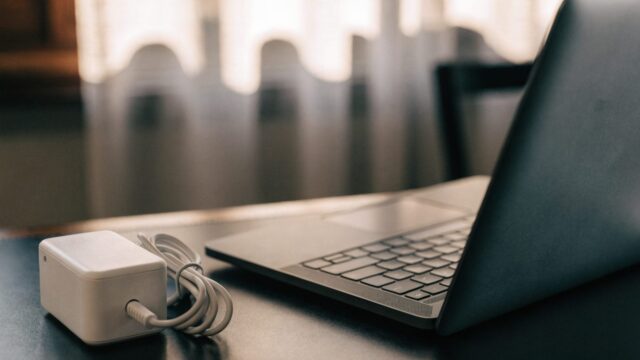
- Use the right charger. An underpowered or non-matching charger can charge inefficiently — see the Chromebook charger guide.
- Unplug external accessories you’re not using — USB drives, external displays, and hubs all draw some power even when idle.
How to Tell If Runtime Loss Is a Settings Issue or a Battery Health Issue
If you’ve made these changes and still see a big drop in runtime compared to what your Chromebook could do when new, the issue may be battery wear rather than settings:
- Check battery health to see the actual wear percentage.
- Compare your current runtime to typical expectations in how long should a Chromebook battery last.
- If the battery drains unusually fast even when mostly idle, see Chromebook battery draining fast: 10 fixes for deeper troubleshooting.
FAQ
Does closing the lid save more battery than sleep mode?
Closing the lid puts the Chromebook to sleep by default, which already uses very little power. There’s no meaningful extra savings from a full shutdown for short breaks — sleep is fine.
Do browser extensions really affect battery life?
Yes, particularly ones that run constantly in the background (ad blockers doing heavy scanning, price trackers, or anything polling a server repeatedly). Disabling ones you rarely use helps both battery and performance.
Does using dark mode save battery?
On OLED screens, dark mode can meaningfully reduce power draw. Most Chromebooks use LCD panels, where the savings are much smaller, though brightness still matters more than color scheme either way.
Is it better to use Wi-Fi or a wired connection for battery life?
Wi-Fi radios are efficient enough that this rarely makes a noticeable difference for typical use. Screen brightness and background app activity matter far more.